From ISO 9001:2015 to ISO 9001:2026: Managing Change with QT9 QMS
November 12, 2026
Full Transcript
0:00
Good afternoon everyone and thank you for joining us. My name is Angela.
0:06
I am the directions for EMEA at QT9 software.
0:10
So today we will look at the upgrades to ISO 9001-2026, what this means for your quality management system and how QT9 can help you coordinate the work involved.
0:22
We will spend most of our time in the software following one practical example from identifying a gap through to checking that the change has been implemented effectively.
0:32
Before that, just a few housekeeping items.
0:36
So regarding the webinar, if you could submit any questions that you have during the webinar, and we have our team online available to answer throughout the presentation.
0:47
Also in terms of follow-up materials, we will send on a recording of the webinar after within a week along with ISO 9001 2026 checklist and a blog post titled ISO 9001 2026, what requires action and what does not.
1:03
So these will be sent on after the webinar.
1:06
Just wanted to point out about our customer support.
1:08
If you would like to arrange a one-to-one Q &A session just for you and your team, please email qmssupport at qt9software.com.
1:18
And if you could kindly complete the survey after the webinar ends.
1:23
So just looking at the outline of what we're going to be covering today, so we will start with the transition dates, then the main changes to be aware of, then consider what these changes might mean for your company.
1:37
To make this practical we'll use one example throughout the demonstration that will let you see how the same action moves through the different modules in QT9 QMS.
1:48
And then we'll finish up with a short recap.
1:53
So looking at the transition milestones, there are two dates here and they apply to different situations.
2:00
The March, 2028 date concerns organizations who are seeking new or initial certification.
2:06
For those of you who are already certified to ISO 9001, September, 2029 is the transition deadline.
2:13
The important point is that the transition needs to be completed by then, including the time it takes to resolve any findings and the issuing of the certificate which may take a few weeks after the actual audit.
2:25
So just to bear that in mind in terms of that deadline.
2:31
Just moving on then to how soon can you upgrade.
2:35
So the deadline tells us when the transition must be finished but it doesn't mean every certification body will be ready to offer a certification to the new edition at the same time.
2:46
Your certification body needs to complete its own preparations and accreditation for the new standard, so confirm availability directly with them.
2:56
In the meantime, there is plenty that you can do internally.
3:00
You can assess your gaps, assign responsibilities, make the necessary updates and start gathering evidence that those changes are working.
3:08
And this is what we will be going through in today's session.
3:13
So looking at the changes in a little bit more detail.
3:16
So what is changing for ISO 9001-2026?
3:22
The starting point is that you can build on your existing QMS.
3:25
Many of the principles and processes will already be familiar to you.
3:30
One area receiving more attention is quality culture and ethical behavior.
3:35
That brings the discussion into everyday decisions, how people respond to mistakes, whether they feel comfortable raising concerns, and how managers respond when quality and delivery pressures compete with one another.
3:48
The quality policy wording also reinforces the connection between quality and the direction of the business.
3:55
For risks and opportunities, the distinction becomes clearer.
3:58
We need to consider what could go wrong while also considering where we can achieve better results. So risks and opportunities are two separate clauses now in the new standard.
4:09
In terms of QMS changes, think beyond approving and releasing the change and consider who needs know how will we check whether it has achieved the intended result.
4:19
And finally, management review includes changes in the needs and expectations of relevant interested parties and this is the area that we will use for our case study today.
4:29
The familiar foundations then are shown at the foot of the slide remain central to the QMS. So what does this mean for your company?
4:43
These questions give you a practical starting point for your gap assessment.
4:47
Look at what you currently do and the you already have.
4:50
You may find that some areas are already well covered while others need clearer wording, better communication or a change in practice.
4:58
For example, a policy may describe the expected behaviour but talking to employees can help you understand whether or not they know how to apply it. The outcome should be a focused list of actions with clear reason for each one.
5:14
So just moving on from identifying gaps to actually demonstrating readiness for the audit.
5:20
So once you have identified the gaps, the next step is to turn them into manageable actions.
5:26
Each action needs somebody responsible for it, a realistic completion date and a clear understanding of what completion looks like.
5:34
Some actions will involve documents, others may involve training, resources or process changes. Then comes the verification.
5:43
Have people adopted the change and is it achieving the intended result?
5:47
Internal audit and management review will help you assess that and we'll be going through all of that as part of the live demo.
5:53
Q2.9 QMS gives us a way to coordinate this work and retain the supporting evidence as we go along.
6:02
So our case study, we will be looking at management review.
6:06
Our argument, let's say, has is that the current management review SOP and agenda do not clearly prompt a review of changes in relevant interested parties needs and expectations.
6:18
So this is just one of the changes in the new standard.
6:22
We will follow the actions generated by that finding.
6:25
We will need to update the SOP, train the relevant people, check that the revised SOP is being followed.
6:32
We will use pre-populated records for the live demo so that we can focus on how the work connects across Qt9 QMS modules, because we will be looking at a number of different areas.
6:44
So change control.
6:45
So this is what I'm proposing as an approach that you can use to manage this transition.
6:53
So think of QT9's change control module as the coordinating record for the transition.
6:59
It brings together the assessment, the plan, responsibilities, and progress.
7:04
The supporting work takes place in the relevant modules.
7:07
Documents go through their own review and approval process.
7:11
Training records show who has been briefed and audit records capture what was checked and any findings.
7:17
These activities can progress while the overall change control record remains open and I'll go through that in detail.
7:25
Auditing and management review then brings the results together so that leadership can assess the progress, outstanding issues and readiness for that transition.
7:35
So now I'm going to actually move on to the practical demo and we will go through this in a live scenario.
7:42
So I'm now moving to QT9's homepage so this would be familiar to a lot of and I'm going to navigate directly to the change control module.
7:53
So just go to ISO functions, change control and I have one already ready for this demo.
8:02
So looking at change control number 20, upgrade from ISO 9001 2015 to 2026.
8:11
So for those of you who haven't used this module before, not to worry as all of our work in a uniform fashion and if this module is new to you please reach out to us for training resources or use the Help Center which goes through how to use this module step by step.
8:29
So starting off in the upper section, so this record I'm going to go through in the most detail of the other modules we'll be covering today and then what I'm talking about in these tabs and features will apply to the other modules as well.
8:45
So I'm going through this in detail.
8:47
So starting off with the upper section, you can see here that we have title, responsible party, priority, type, category, due dates. We also have links to other records.
9:00
So we have, you can create a CAPA or corrective action, create a deviation, you create a risk assessment.
9:06
I already have one created here.
9:08
So this is one that I can, you can see that you can go directly one.
9:13
So what I might do is create a corrective action as a demo just to show you how this actually works in practice.
9:22
So just firstly to talk about the other items that I mentioned.
9:26
So the due date is automatically assigned based on priorities. You see priorities here.
9:33
You can have as many priorities as you like but a typical arrangement is say high, medium and low.
9:37
So for example you may a 10-day due date for high priority items and maybe 30 days for low priority.
9:44
However, this is a longer term project so you can edit the due date.
9:48
Now I'm going to show you how to do this, but by the way, only admins can actually do this.
9:54
So you just get a window, you put in the new due date, you put in a note to explain why you're extending out the date, and then you just save.
10:02
I'm just going to cancel this for now. And when you do this, it will show up in the timeline.
10:07
So everything is captured with full traceability.
10:12
So looking at type and category.
10:14
So there is really no difference between these in the sense that you can set these up whichever way you like in terms of your own reporting system.
10:22
So you can see here that I have, you know, for example, admin design facilities process system.
10:28
And under category, then I have more details here and a factory inspection, online content change and so on.
10:33
So again, these are any way you like, you can set these up and these are set up in the manage maintain menu.
10:40
Only admins, as I said, in terms of control of this record, only an admin or the responsible party can edit all of this record, with the exception of the tasks.
10:51
With the tasks, responsible party or admins can create tasks, but this allows other people to interact with the record.
10:58
But I just want to point out that you have a lot of control over this record.
11:03
It's not that everybody that's involved can make changes, it's only responsible party and admins.
11:09
So I'm just going to show you how to link a record. So I'm just going to say create corrective action.
11:18
Now what happens when you do this is it will actually go to that record and it will ask you for example, just going to pick an example here, just the audit issue for responsible party, Select the problem, and this is coming from the CAPA module itself, the drop-downs priority.
11:37
And again, I'm just going to say hi.
11:39
You can actually select which fields you want to actually carry over.
11:42
For now, I might just say nothing and nothing and create corrective action record.
11:48
Now, I won't look at the records again for time purposes, but you can see that you have go to corrective action.
11:53
You have go to risk assessment.
11:55
So these records will go over and back.
11:57
if I go to corrective action, it will direct me back to the change control if I need to, and same for the risk assessment.
12:04
So I just wanted to point out these linkages for this particular record.
12:10
Moving on to the tabs, we have description, initial analysis, impact assessment, planning.
12:19
Under planning, you can see we have change planning and implementation plan.
12:23
So typically I might put the plan here and for the implementation plan I actually use the tasks feature which we will see in a moment but of course you can also use this to document your overall implementation plan and of course we have lots of room here in these tabs up to 4 million characters can actually be put into any of these text boxes so you've plenty of room for any amount of information you would like to put in here.
12:46
You can also add affected departments, you can add documents.
12:50
So this is one of the big features of the change control module that you can actually link directly, a document or multiple documents.
12:59
And I will go through a live demo of this in order to link it to the change control.
13:06
So because this of the type of change that we're doing here, it's going to affect multiple documents.
13:12
So this is the reason that we have this feature.
13:14
Now you can create a new document request or you can add existing documents for review.
13:20
And once I've just finished off the rest of the tabs here, I'll come back and do a live demo of this.
13:27
This tab processes is coming from your audit module.
13:31
So again, I have a process set up for the transition checklist, and we'll see this a little bit later on.
13:37
Action taken, then you can update the section based on tasks or refer to tasks.
13:44
Under user defined, I'm just going to explain these a little bit for those of you that might be new to this feature.
13:50
Pretty much every record in Qt9 QMS has this feature of user defined and this is completely customizable and maybe I will describe what you can do you can have multiple sections in this case this is like for example one section you can have multiple sections and multiple questions within each section section you can afford different types of responses here I just have a closed response yes and but however you can have open response where you can enter free text, you can have closed as we have here, you can have multiple choice where you can select more than one response, you can have numeric where the entry has to be a number.
14:30
You can also make the question required or not required. So lots of flexibility there.
14:35
In our demo example I'm just putting a reference to the records here so I'm just going to say yes because we did create a risk assessment, yes for CAPA and deviation, I'm going to leave that at no.
14:47
Moving on to tasks.
14:48
Now this is a really, really strong feature.
14:51
And again, pretty much all of our records or modules in Q2.9 have this feature.
14:57
They're unlimited.
14:58
They're a great way to categorize action, assign responsibility and due dates.
15:03
So I have generated these tasks based on the overall process, the overall actions, starting with contacting your certification body talk about the transition audit and ending with the management review and finish closing out any open items. So what I have done here is that we have a priority here.
15:23
Now this can be used quite simply as a priority, but what I sometimes do is use this to categorize the tasks.
15:30
So in this case, I've categorized as follows.
15:32
One, initial analysis, gap analysis, you know, gap assessment, contacting your certification body.
15:39
Number two, then updating procedures and other documents. Three is relating to actions relating to training and awareness.
15:48
Four is around my internal auditing, training my auditors, updating my processes and so on.
15:54
And five then management review. So I just wanted to point out how useful this task feature is.
15:59
So as I mentioned, Typically, only responsible party and admins can edit this record, but using the tasks feature, so you can see here Eileen, Angela, Aidan, John, Dara, all of these people can edit tasks assigned to them.
16:14
So it's a useful way of allowing others to interact with the record.
16:18
And you can gather a lot of information on these tasks, and this is particularly useful when you're closing out or verifying a record.
16:25
You can go back and check the detail and even reopen the task if you feel it has not been adequately addressed.
16:32
Just to return to our case study, our gap assessment has identified that the current management review SOP and agenda do not clearly prompt a review of changes in the interest parties needs and expectations.
16:44
So as a result, we create a task 1098.
16:49
So I'm gonna look at this task in more detail just to illustrate the features in this task function.
16:54
So you have a description tab, you have an action taken tab, You have notes, why would you use this?
17:01
You can actually use this, or the task owner could use this to break down the task into even, you know, greater increments.
17:10
So in other words, you could say we started the review process, we contacted the auditing body, and they're time stamped.
17:17
So again, it's a way of breaking down, you add your note, save notes, and it just comes up here in the little timeline within this.
17:24
Then you have files, and of course you have unlimited file attachments, and you have a timeline.
17:30
So even the tasks have their own timelines.
17:35
So I'm just going to close this task down.
17:38
So again, this is just the task kind of kicking off, I suppose the subsequent actions we'll be looking at going through this demo.
17:45
And I'm going to move on to approvers.
17:48
So we have our approvers for the change control module.
17:51
Again, to show up on this dropdown list, you need to have the designation to be an approver for the change control record or be a global admin.
18:00
Then you have the verification tab and you can add multiple verification notes here.
18:05
And this is describing what you need to do in order to close out this record because this is a record that has both approval and a final verification step.
18:14
But you can also set up a task for verification and this applies the same to the other records in Qt9 that have a verification step.
18:22
You can set it up as a task also.
18:25
Timeline, so again all of our modules and records have this timeline and you also have unlimited related files.
18:31
In this case I have attached on our gap analysis, so again we do a gap assessment or a gap analysis checklist and this is one of the items that we will be forwarding on as after this webinar as part of the follow-up materials.
18:46
So I'm going to go back to show you how to update documents through this system here.
18:52
So this, as I said, you can create a brand new document request or you can just add an existing document and revise it.
18:58
If you are already certified to ISO 9001 2015, it's unlikely you will need a new procedure.
19:05
You may need a new form or you may need to make updates to some of your existing procedures or documents.
19:11
So to add a document, you just select this option here.
19:16
And this will show you a list of all of your documents.
19:19
Now, look, you might have hundreds or thousands of documents.
19:22
So you can put in filters here.
19:25
So, for example, I want to see all of my procedures and that's filtering for procedures.
19:29
And I can further put in management review.
19:33
This is the SOP that I want to update.
19:36
So let's take on this.
19:38
You just add assigned and again, you can assign multiple.
19:42
I'm just assigning one for the time being and then just assign selected.
19:45
So it moves from the top section to the bottom section.
19:48
and then you can see it's it's now here in our little working area but you can add multiple documents here and you can continue adding documents while this record is open. So what do we do next? We review the document.
20:03
So to further explain this, you just hit on the icon here and I'm going to explain, actually I do want to rewind a little bit here, so by putting a document here it doesn't mean that you have to update the document. This is an important point.
20:22
It could be a document that you think may need to be updated.
20:26
So I'll show you in the review process that you can decide whether or not an update is needed.
20:31
So again just to review the document hit on this icon here and this this page comes up. So you can select this option.
20:38
This means that you reviewed it and by the way you can actually directly open that document from that link as well there that we're looking at.
20:46
You don't have to go separately into document control.
20:49
But you could say, yes, I've looked at the document.
20:51
It's fine.
20:52
It includes what changes we needed.
20:53
We don't need to update it.
20:56
You need to make a note in order to complete the review.
21:00
You don't need to make a note to save the review.
21:03
But just to point out, and I'll mention this again towards the end, you can't actually submit this record for approval unless you've completed the review on every single document that you've added to the record.
21:14
But as I said, you don't need to update every document.
21:17
You just need to confirm that you have.
21:20
So in other words, you've traced the ability that somebody has said, OK, this document does not need to be updated.
21:25
And these are the notes and the rationale why.
21:28
But for this case, I want to show you an update of a document.
21:32
So for this, I'm going to select the second option.
21:34
A newer revision is required to conform to the change control.
21:39
So here now you have selecting a responsible party.
21:42
This can be changed afterwards, but for now I'll just assign it to Adara.
21:46
And you can see you have your change request notes here.
21:49
Again, you can pull out this text here.
21:52
You don't, you can actually just leave it as Creators from Change Control number 20, or you can actually add in the change required.
22:00
So for this demo, I'm just going to put the information in that we need.
22:05
So this is going through into the document request and you just say, initiate new request.
22:11
So what has happened here is that a Responsible Party Diary has been informed.
22:16
There is no file attached yet to the master or display so this is basically in document requests.
22:22
Now again in order to close this out you would need to have this ticked and notes put in here to complete the review.
22:30
I'm just going to show you what happens if I don't do this. So I'm going to hit on complete review.
22:36
It's telling me cannot do this because newer revision has not been marked as acceptable and the notes are required.
22:42
So again just want to illustrate the controls that we have in the system.
22:46
So you can also just save the review and if I just say newer review is acceptable and I put in okay here, I don't recommend doing this but I'm just going to show you what happens if I do this.
22:59
It's going to warn me that the newer revision is currently a document request so confirm.
23:04
I don't recommend overriding this, would cancel this and go ahead and wait until the document request has actually been completed.
23:12
So I'm just going to cancel this out and leave that for the time being.
23:18
So I'm going to move on from this record to document control but I want to make a few closing remarks about this record before I move on.
23:28
You cannot submit this record for approval until all the document reviews are completed.
23:32
You cannot approve this record if any of the request stage.
23:37
So even if you get through the review, it will still stop you if your document is in document request.
23:42
So there's a lot of controls in this record as a master control. You can approve this record with tasks open, but you cannot verify.
23:50
So this is one of our records that has a two-step close, approval, and then verification.
23:55
To fully close out this record, you would need all tasks closed and all documents at least at the submitted stage.
24:02
In this use case, I would leave the change control record open while you're working on updating the affected documents and identifying tasks.
24:11
Once the record is approved, you cannot add tasks, but you can still work on them.
24:16
So I'm going to move on to document control, and by the way, this is where you can open the actual document here just by hitting on the hyperlink here.
24:23
I'm going to move on to document control, but I will open, you can obviously access it from here under document request because it is now a created document request and the responsible party has been notified and it will be in their to-do list again automatically through the system but I want to show you how to get there directly from here so I'm just going to again go into the icon and you can see here you can go directly to the request it will just ask you to confirm navigation to make sure that you're happy to move away from this module we're now in document request modules. So just one click and you're over.
24:57
So you can see in the timeline, so just want to show this to you, that this was created during change control number 20.
25:04
So you have that traceability with the master change control record.
25:08
You have the revision info doc description. I'm going to sign a responsible party here. So I'm just going to sign Eileen.
25:15
The first thing I would recommend doing is that ticking on training required.
25:21
I'm just going to the request here.
25:24
So the reason I do this is that once this record is approved, now for this example I'm just going to have one approver but if you have multiple approvers, once the final approver has approved the record, a training record is automatically created and I will show you this and it will also attach anybody who is linked to this document via the job title feature.
25:47
So again I know I'm not going into training in detail, but you can reach out to us if you need any assistance on that.
25:53
But you can link people specifically to records, making sure that all the correct affected people are trained.
26:02
So you can also add a check for this in the user defined field where you can say, for example, the justification.
26:07
I'm just going to type in upgrade to, I'm just going to say 2026 for time purposes. Does training apply?
26:18
And I'm just going say yes. So again this is just a reminder to the user to have make sure that that button is ticked.
26:27
So I'm going to go to the document form tab and I'm going to actually upload an update.
26:32
So I've already got my SOP updated and ready to go and I will show you the changes that I made just to make it clearer.
26:38
So I'm going to hit on upload master file and I'm just going to select and I just have these ready on another screen and I'm just updating uploading the master file, and I'm now going to upload a display file.
26:53
So again, this is where you can upload a PDF of the document.
26:58
And I'm going to just upload this.
27:05
OK, so it's just confirming that it's all uploaded.
27:07
And you can also see there on the screen that they're uploaded.
27:09
I'm just going to open this just to show you as illustration.
27:14
So this is the actual SOP for the demo.
27:19
I've just highlighted this in blue.
27:21
So the change here was that we needed to add item number three, review changes on the needs of expectations of interested parties, their impact on the QMS and any actions required.
27:30
So this is what we're going to be following through the training, the auditing, the management review modules subsequent to this. I'm just going to X out of that.
27:40
And the last thing I need to do is go and add an approver. I'm just going to add myself.
27:46
So we can go through a full worked example and I'm going to just submit this request for approval.
27:53
Again, I'm not going through this module in detail.
27:55
I just want to give you the overall viewpoint of how this one action is tracking through the different modules.
28:02
So because I've submitted to myself, of course, if it was to somebody else, they would get a notification, to-do list and so on.
28:08
But I'm just going to click on Submit it to me. So this is the record. And again, by the way, this change description came through.
28:15
I didn't update that, but you can update it, of course, at this point, or sorry, before you submit it for approval, you can update it.
28:23
I'm going to go ahead and approve this.
28:26
And you have optional approval notes.
28:29
And I have passwords set up for additional controls for approval, so I'm just popping in my password.
28:37
And, okay, so let me just double-check that.
28:49
Okay, so we should have a training record now completed and ready to show you that next step.
28:58
So I'm going to move on to training and I'm going to go to training and training records.
29:04
Now, this will be showing up unassigned because you have to assign yourself as a user when these are created automatically.
29:14
I'm just going to assign myself as a user.
29:15
This just means the next time I log in, it will automatically show up for me.
29:19
I just want to show you in the timeline what happened in the background here.
29:23
So as you can see, this was created by the system, created from approved document request after final approval.
29:29
The training record started, so it automatically starts when in the case of a new document.
29:35
And then you can see that all these people were assigned to the record based on their association with the document.
29:42
So under here, you can see all these employees have been assigned to this training.
29:48
And they have been notified as well, by the way.
29:51
You can, of course, send reminders to the system, but they have already been notified.
29:56
The document is actually attached under here so they can look at the document.
30:00
And by the way this all comes through to the employee portal where you do the training.
30:04
This also comes through in the employee portal so that the trainee can easily see what the changes in the new document.
30:13
So I just want to point out before moving on from training that you can use this module for other aspects of this upgrade to 2026 version.
30:23
For example, an updated quality policy, summary of the changes, maybe a training session on quality culture and ethical behavior, maybe an update for your internal auditing team.
30:33
And all you have to do is hit on new training record, put in your details.
30:39
Again, all the tabs then will show up.
30:40
You can add hyperlinks, you can add files, you can add even links to videos and so on.
30:45
So I just wanted to point that out that this will be a very useful part of your upgrade to 2026.
30:51
So, I'm going to move on. We've covered the master records, the change control, which identifies all the activities required for the update.
31:00
We have taken an example of a change that is needed to comply with the new standard, which is updating the management review SOP and following through to the training.
31:08
So, the next step I want to look at is the auditing module. Now, a little bit of setup involved here.
31:14
So I'm just going to go back to the home page to orientate ourselves and we need to go first to the Manage menu.
31:23
So I'm going to go to Manage, Maintain, Audit and we need to start with the quality standards.
31:33
So this is the foundation of your auditing function.
31:35
Now I have added in the 2026 version here.
31:39
You can do that yourself or you can edit your existing quality standard if it's 2015.
31:45
If you've completed your internal audit so that's standard, you can actually modify this or you can just add it in as a new standard.
31:52
So I have the standard there so I am now ready and for example one of the changes here would be the addition of 6.1.3.
32:00
It's very easy to modify these standards by the way.
32:03
So you can see that you could just add in, I'm just going to put in *** and it's just you can add and it adds live. I'm just going to remove it.
32:10
Very easy to do that.
32:12
Also, you can modify any of these items.
32:14
You can see that's come up now for edit.
32:16
You just make your modification.
32:18
Again, I'm just typing there and just save.
32:22
So yeah, these are very easy to add or to modify.
32:25
I'm just going to save before I move on.
32:29
And the next thing I'm going to do is look at the, what I would suggest doing is creating a process and a checklist.
32:36
So I've already this done in advance.
32:38
So again, manage, maintain, audit.
32:40
This time I'm going to processes and I have created a process for just a final checklist.
32:47
Now you could have many checklists, but I just prepared this just as an example.
32:51
So this is like a final check that we can do and I have an audit set up to match this prior to your management review, prior to your transition audit.
33:00
Okay, so there's an order of events here.
33:03
So here I have the elements for ISO 9001-2026.
33:08
Here I have linked documents.
33:09
So this is a feature if you're not aware of it that you have also with the processes, you can add documents.
33:15
And these pull through to the audit record and I'll show you this in the demo, the example that I have set up.
33:23
And also we have a checklist and we can look at this here.
33:28
Going to hide this.
33:29
And we can look at that in the actual audit record itself.
33:32
We'll be looking at a specific example again to keep that thread of the one change that we're following through.
33:38
The checklists, of course, are set up here, Manage, Maintain, Audit and Audit Checklist.
33:45
And this is all I need to do.
33:47
I'm set up now to create an audit, but I have created an audit.
33:50
So I'm just going to go back to the homepage again.
33:52
And now I'm going to ISO Functions and Auditing.
33:57
So I have an audit set up here for the upgrade from 9001.2015 to the 2026 version.
34:05
I'm just going to open that record.
34:09
And you will see that I have already added the process that I created.
34:15
This automatically brings in the associated checklist.
34:19
And of course, here, I'm not going to go through this module in detail, again, please reach out just if you're unsure about anything in these modules, happy to go through it with you.
34:28
This is definitely going to be one you're going to use as part of this transition process.
34:34
So, you can see here as well, you can log results and you can also, I'm just going to show you in the checklist, so item number 11, so does management review address changes in relevant interested party needs and expectations.
34:50
So again, we updated our SOP, we did the training, now we're seeing are we actually adding this new agenda item.
34:59
So, this has been updated to Rev 7 to include this requirement.
35:02
Check after next management review that the agenda has been updated on the item address.
35:06
So I'm not going to tick it as conforming as of yet, but of course, as you're going through and making changes here, we would just go ahead and save those line items.
35:15
So this is a good segue to the final part of the live demo, and that is the management review meeting.
35:23
So again, these events that I'm describing would be happening over a series of months, and this would be happening pretty close to your actual transition audit.
35:32
Again the order would be identify the actions, carry out the actions, update the documents, do the training, do the audits.
35:41
So again we're at that stage and then the final stage then is the actual management review.
35:46
So again I'm going to go back to the home page and to find the management review module ISO functions again, management review, and we are going to look at one I have set up as an example.
36:01
Now likely you'll be holding this meeting after the bulk of the activity is completed.
36:05
Now you may have one or two in between depending on your frequency of your management review meetings, but this as a demo is one that you might hold shortly before the actual transition audit.
36:21
So won't go through all the tabs in this for time purposes, but I will show you a few examples and describe the main features.
36:28
All of the tabs here, again, if you're not using this module, I highly recommend using it. It's very easy to set up and easy to use.
36:36
But all of these tabs, so you've got corrective actions, preventive actions, risks, policy objectives, training can generate what we call MRM issues. These are like tasks. They have more detail.
36:49
They're designed to follow up the actions from management review and we can see them under a separate view and I'll show that to you also.
36:57
And also you can actually generate CAPAs from these MRM issues, let's call them.
37:03
So again, I'll show you an example and I'll just describe this first page before we move on to the tabs. So you can add your attendees here.
37:11
So again, this let's say our management team for our demo. We have our agenda here. So again, I can pull this out.
37:17
You have all that unlimited space. So review actions from previous meeting and so on.
37:22
This is a typical agenda from the SOP that we looked at earlier.
37:27
So this is the new one, number three, review changes in the needs and expectations of interested parties, impact in the QMS and actions required. Okay.
37:36
So this is, again, if I was auditing, I would check that this item was actually included in the management review meeting.
37:43
I'm just going to look at a couple of the tabs here.
37:46
So for example, quality policy, and this is another one that is going to be impacted, confirm that the revised quality policy has been approved and communicated to employees.
37:55
So again, your policy, this automatically, by the way, comes through from your current quality policy on your home page.
38:01
And here is an issue that I added.
38:03
So this is an action.
38:04
This is an MRM issue.
38:07
So, description, action needed, responsibility analysis, what resources are needed.
38:12
So, again, a little bit like tasks, but just more detailed, what improvement, and then of course files, and then timeline.
38:20
Then you can see that you can actually create a CAPA directly from these MRM issues as well.
38:25
So these are incredibly useful.
38:27
And I'll show you at the very end of the demo how you can see all of these in one list.
38:32
So I just have a few examples set up for this record.
38:35
Training tab, I have some more examples here.
38:40
Again, ensure employee awareness is completed for the new standard.
38:46
And again, you can make these notes.
38:47
So these are almost like the minutes of the meeting, and these are the actions arising out of the meeting.
38:52
And you can, I won't do this in this, but you can actually print and see the whole thing in the one sheet.
38:58
But I'm just going to show you how you can track the actions here through the menu item.
39:03
So the training tab, this is, we just looked at QMS changes.
39:07
Of course, this is a big one.
39:08
This is a big change in terms of the 2015 version has upgraded to 2026.
39:14
And I have an action here.
39:16
I'll just open it to show it to you.
39:18
So confirm that the gap assessment for the transition has been completed.
39:22
All actions have been implemented and verified and supporting evidence demonstrate readiness and so on.
39:27
So you can see that all these actions been put together. User defined fields, this is another one.
39:34
So yes, we have user defined fields also in this module.
39:38
And I'm just going to focus, I have a few items here, but I'm just focusing on the first one. And I added this in, in response to the change.
39:45
So are there changes in the needs and expectations of interested parties? And I have yes or no.
39:52
Now I often set up my user defined fields like this that I have, you know, are there changes? Yes, no.
39:58
And then the second question, if yes and this is this is the one that's optional so it's an if question so i say if yes to q1 and actually it is yes i'm going to change that to yes enter the MRM number so i'm just going to save that so you can see i've got MRM number 661 in here and this is coming from this tab which is interested parties and you can see here that there was a change one of our key customers had a new requirement, and I created MRM number 61 from this.
40:28
So again, just to show you that the user-defined fields are really useful, particularly in the management review meeting, where you can cover a lot of items that you may want to cover once or twice a year.
40:39
And of course, you have related files and timeline as well with this.
40:44
And as you can see here, as we're just looking at, we do have a dedicated tab for interested parties.
40:50
So, this is the management review record, and this should be your last step prior to the transition audit.
40:55
So, what you need to do at this meeting essentially is making sure that all of the items are closed.
41:00
Of course, you're addressing all of your agenda items, but that you have all the gap analysis items closed out, change control record would be closed out at this point, and your internal audits that there's no open items, everything is closed out, and you're ready for your transition audit.
41:15
So I want to show you where you can find all of those MRM issues.
41:19
So this is where you have the beauty of the functionality or the efficiency here.
41:26
So you can see here under management review you've got MRM issues. So I'm just going to open this filter to all open items.
41:33
Now these are just a few examples that I put into that record that we just looked at.
41:38
So it was MRM number 13 and you can see all of these actions that I created.
41:42
I pre-created them just again being respectful of time.
41:47
But again, you can add these items prior to the meeting, during the meeting, or after the meeting.
41:54
But again, they'll all show up here and can be tracked here.
41:58
And again, this is for leadership oversight.
42:01
And you can see, you can filter by responsible party.
42:04
You can have your item description here.
42:06
And of course, as you know, with the columns, you can put in maybe the full description if you like.
42:11
And you can, you know, you're familiar with this feature here in the grids.
42:16
So I'm just going to look also finally, before I move off from the live demo, I want to show you one final thing.
42:23
And that is the tasks.
42:25
So we talked earlier on at the very start about the change control module and the way you can generate tasks.
42:31
And again, all of our modules really can do this.
42:34
So if you go to the menu item here, project stroke tasks, and just go to the second item on tasks.
42:41
So you can see this is actually tasks for, you know, I'm just going to put all open, for example.
42:46
You can see these are coming from all the different modules.
42:49
However, I want to see what are the tasks open for this particular change control.
42:57
So again, this is relating to leadership oversight, management oversight.
43:01
I'm just going to put in this filter here, so created from.
43:05
So you can see this always shows you corrective action 13, risk number two, so on.
43:09
So I'm just going to apply that filter and here straight away I can see okay what is open from the tasks I created in this change control.
43:19
So as you can see we already saw these in the change control record but you can see these separately in the tasks view and again this applies for all of the other modules.
43:31
So giving everybody a clear picture of any open actions and what still needs attention before your transition audit.
43:36
So you expect to see all of these items closed before actual audit. So I'm going to return to the presentation.
43:42
I'm going to bring all of this together. So just wrapping up.
43:52
So in overview, start off by understanding the gaps in your own system using the change control module. Completing a gap assessment.
44:02
Use these findings to define the actions, carry out those actions and train affected staff.
44:08
So you can use these modules change control, document control, training.
44:14
Check implementation through the change control verification, internal audit module, use the management review module to assess your results in any outstanding work.
44:23
Today, we followed one example to this entire process, but your transition may involve several actions.
44:30
But the same approach will give you visibility of who is doing what and the evidence supporting completion of those items.
44:37
Some activities will overlap and progress reviews will take place throughout the process.
44:42
As I said, this would take place over a number of months.
44:45
The aim is to arrive at your transition audit with your changes ready already in use and evidence available to demonstrate their effectiveness.
44:53
So again, as with any audit, you need to provide evidence for your internal audits, for your external audits.
45:00
So you would ensure that everything is done before your transition audit.
45:08
So this brings us to the end of today's webinar. I want to thank you for joining us.
45:13
I hope you found it useful.
45:15
If you have further questions or you would like help making greater use of Qt9 QMS, please contact our support team or your customer success representative.
45:24
Before you leave, please take a moment to complete the short survey.
45:27
Your feedback helps us to improve these sessions and plan future topics.
45:32
Again, you will be sent on information after this session, some materials and including a checklist for your gap analysis between 9000 and 1 2015 and 2026.
45:44
Thank you again for your time, we look forward to welcoming you to another webinar very soon and goodbye for now.
Questions From This Session
When is the ISO 9001:2026 transition deadline?
Organizations already certified to ISO 9001 must complete their transition by September 2029. That deadline includes the time needed to resolve audit findings and issue the new certificate, which can take a few weeks after the audit. March 2028 applies to organizations seeking new or initial certification.
Can we upgrade to ISO 9001:2026 right away?
That depends on your certification body, which must complete its own preparations and accreditation for the new edition. Confirm availability with them directly. In the meantime, you can assess your gaps, assign responsibilities, make updates and start gathering evidence that the changes are working.
What are the main changes in ISO 9001:2026?
The 2026 edition builds on your existing QMS. It places more emphasis on quality culture and ethical behavior, strengthens the link between the quality policy and the direction of the business and splits risks and opportunities into two separate clauses. It also expands change planning to cover communication and checking results, and management review now includes changes in the needs and expectations of relevant interested parties.
Do we need to write new procedures for ISO 9001:2026?
If you’re already certified to ISO 9001:2015, you’re unlikely to need a brand-new procedure. You may need a new form or updates to some existing procedures and documents. A gap assessment will show which areas are already covered and which need clearer wording, better communication or a change in practice.
How can QT9 QMS help manage the transition?
QT9 QMS Change Control can serve as the coordinating record for the transition, bringing together the gap assessment, plan, responsibilities, tasks and progress. Linked Document Control, Training, Audit and Management Review records capture the evidence as each change moves through the system.
Key Takeaways
Presenters
See QT9 QMS in Action
Learn how QT9 QMS helps manufacturers manage supplier audits, corrective actions, and supplier compliance from one centralized platform.
Request a Demo →Explore QT9 QMS in Action
Take a self-guided tour of QT9 QMS and see how organizations manage audits, supplier quality, CAPAs, training, document control and compliance from a single platform.
Launch Interactive Tour →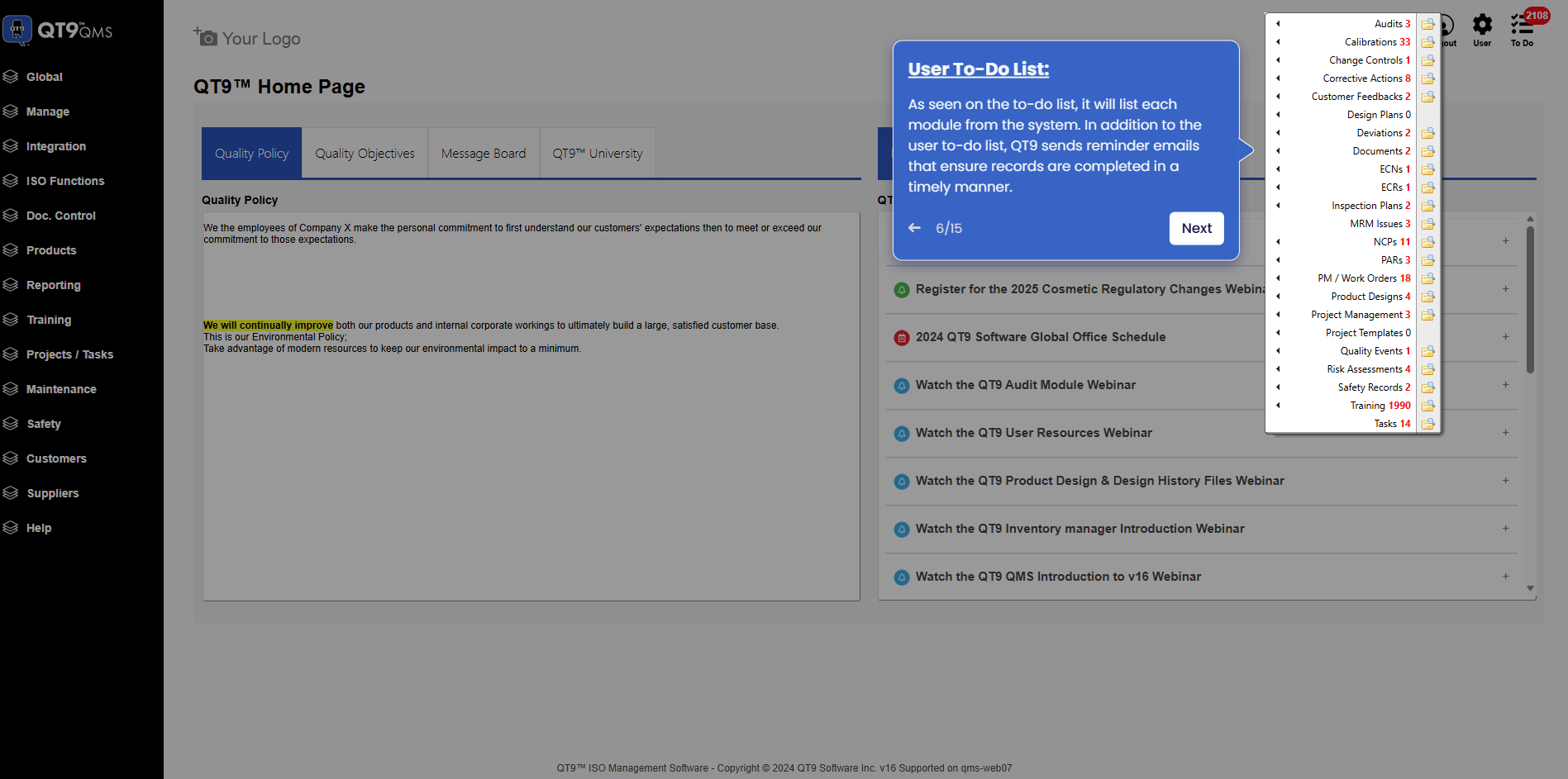
Simplify Quality, Compliance and Operations
Start a Trial
Try QT9 free — no credit card required.
Start Free→
Schedule a Demo
See QT9 live with one of our product experts.
Book a Time →
Get a Quote
Get custom pricing tailored to your team size.
Get Pricing →