Employee Training Management in QT9 QMS: Matrix, Tracking & Doc Control
March 5, 2024
Full Transcript
Good morning, everyone, and welcome to the webinar. We're so glad you guys joined us today. During today's session, we're going to be covering the training module of kind of an overview on it, as well as talking about some of the reporting options that are available to you, both inside the system and through our business intelligence tool.
Now, before we get too far into today's information, I do want to talk about some information for the webinar itself. I do want you guys to note on the orange arrow on the vertical webinar toolbar, that's either going to expand or collapse your toolbar view. So you do want to make sure you know where that is. ⁓ Because at the bottom of the screen, there is a question area. That is, of course, where you can send questions into our staff that we have here.
on the webinar today. They're going to be answering questions throughout the presentation. So if you do have questions, that is definitely the place to put them.
Now, a little bit about the webinars themselves. So these are free webinars that we offer to our users to help you guys get the most out of your system. So we want to give you the best tips, features, and functions with our QMS. Now, we have a pretty broad group of users in attendance today. So we're only going to focus on the specific topics at hand. So in this case, the training module and the reporting for the training module.
The questions that you put into the question area as well, do try to make sure that those are ⁓ tied into just that topic. Now, if during the session, or after today's session, if you feel you need to go through a full training, we do have module training available via QT9 University on your home screen of the QMS. You have unlimited access to train with our implementation and training team. So feel free to register for as many courses as you like.
⁓ Training is one that we do every week. So this is definitely a good one to get into ⁓ week over week if necessary. And if after attending today's webinar and after going through the actual training, if you need to do one-on-one session with us to answer questions, definitely reach out to us via support at qt9software.com. Our team is always happy to work with you and always willing to help you guys kind of understand what the system has to offer.
The last thing I do want to bring up is at the end of today's session there will be a brief survey. It's only a few questions, but if you guys could give us your feedback on the presentation of the material today and on the material, this helps us shape what our future webinars will look like and really helps us tailor the webinars to what you are looking for as a user.
All right, so now that we're through some of the general information, let's go ahead and let's start diving into some of the content for today. So as we mentioned, we're gonna be focusing on the training module here inside the QMS system. Now this graphic here gives you kind of a brief, like high level look at some of the capabilities of the training module. So over today's session, we're gonna be talking about some different elements here that we have and we're gonna be talking about
⁓ how we can help, how the training module can help you guys really enhance your training processes. All right, so we're gonna move forward here and we're gonna go through our primary topics for discussion today. So we're gonna be doing a brief overview of the training module, so a real high level look. I do wanna talk about module set up, specifically I want to talk about best practices to ensure success.
The other thing that we do want to look at here is the creation and usage of training records. ultimately, how are training records made or what are the four methods that we use to make a training record and when is each of those methods most useful? The other big thing we're going to focus on today is reporting. So we're going to talk about the canned reporting inside of the system as well as the BI tool and how to use those to your advantage.
All right, so let's get the site pulled up here and let's get started. All right, now the training module is intended to handle any type of training you require to support your quality system. Now this could mean that you need to ensure training on a document revision. Or this could mean that you have ⁓ a training as an outcome of a corrective action.
Either way or any way a training may be created, we can handle inside of the system. Now the training module is broken down into different components. So it is broken down into an employees, a job titles, a skill sets area, as well as training records, training profiles and training tests. Now employees, skill sets and job titles. These are the primary building blocks of
the module. Now I do want to specify that employees, job titles and skill sets are only accessible to admin users. So that is a training admin, a site admin or a global admin. All right, no other user type will see the information that is present here. All right, now when we talk about the employee area, of course, this is where you're going to add your employees in to the system and this is where you can track
individual training data for each employee. Job titles, of course. These are the different job titles that you have as an organization. And in each job title, you have the ability to associate skill sets and control documents from doc control as part of that job title. Skill sets, of course, are the different competencies and different skills that you may train more on the job. We're to get into these in more detail later on in the session.
The other thing that we do want to talk about from a high level here are training records. Now training records, this area is where all your training data is really being stored because the training record is what actually is where we're actually creating the training curriculum and where your employees are actually being trained. Now in order to access the training record area at minimum, you need the training user user designation.
All right, so in order to access this, you must have at least that designation. Now, if you do, you will have access to what's assigned to you, as well as all open training records, all closed training records, and all unassigned open training records. All right, so you can have the ability to check and see all the different trainings happening across your enterprise, as well as what's assigned to you as ⁓ a training facilitator.
or a user assigned to a specific training.
All right, so at a high level, training records are where a lot of the work is really getting done. The other thing that we do talk about here are training profiles. Now I wanted to introduce you to a training record before I introduce you to a training profile. All right, so the best way to think about a training profile is that this is a training record template. Now this is a fantastic way to build a training record template for training sessions that you have
that happen on a set rotation where the curriculum stays the same. know, an example of that could be like an annual safety training or sexual harassment training. These are things where the curriculum stays the same and it happens on a set rotation. That is where training profiles really shine. Because if I have a training profile built, so in my example here, let's look at the trade secret program. If I have this profile built, I can associate
all of our departments and the employees within those departments, I can assign them to a training record that's created from this profile. And when I create a training record from here, not only will it bring all of those individuals into it, it will also bring in all the skill sets we've defined, all the documents from doc control we've included, any written training tests, if we've built any hyperlinks in.
And if we've added any other related files, so if I had any other type of external document that contributed to this training profile, all of this data would automatically be included in a training record that is created from this profile. Alright, so again, a training profile. Another way to think about it is a training record template that has a recurrence.
The last area that we do want to touch on here are training tests. So our system does allow you to build written training tests. Now you don't have to. I do want to specify that training tests are optional. However, they can be very useful because you can build multiple training tests in here and these tests are rev controlled. So the first time that you create a test in here, you'll see it's on rev zero. You're still going to have to approve that training test.
All right, and if you make any changes to that training test inside, this is an already approved test, I can come in here and I can revise this information and that would allow me to edit the test questions as needed. All right, and again, that would have to go through an approval process. So written training tests are rev controlled. Now obviously this is an important element because if you're going to have tests in the system, it is important to know that they are,
containing the most current and active information. So definitely interesting to keep in mind. And the other key thing about a training test is if a training test is associated to a training record, the training test must be successfully completed before the training record can be confirmed and completed. All right, so definitely interesting information to know. A lot of our users do opt to use training tests just because it's a great way
to specify if somebody or to really see if somebody does know the material that they were just trained on.
Now that's a really quick high level look at what the training module has and what it can do. Now one of the big parts that we want to discuss during today's session are the building blocks and how to build for success. So we're going to start with the employees, job titles, and skill set area. Specifically, we're going to start under employees.
Now, when we talk about building the training module, the employee section is key, mostly because we have to get your employees into the system. Now, that's handled via import, and once that import is done, if you need to add employees, you can easily do that on the fly by clicking here on the add employee function. That would allow you to add an employee as needed. So here, of course, I'd have to put in a first name, a last name, an email address, and save.
Now, with an employee, the important thing about this, and I'm gonna grab an established employee here so I can show you what this actually looks like inside the employee record. Because the employee record contains a ton of great information about this employee, what they've been trained on, and what their actual job is. So, let's talk about that. So, is my employee, Don.
So in here, when we look at Dawn, I can see first off what job titles Dawn is associated to. Now this is really important because under the job title area, that is going to define the different skill sets or competencies that somebody needs in order to hold this position, as well as documents from DocControl. So when that job title is associated to the employee, that is what's going to create or what is going to drive
their training matrix. Now, when we talk about the training matrix here, there ⁓ tends to be some confusion between the training history, document training history, skill set training history, and the training matrix. All right, the training matrix is specifically tied or specific to the job titles and the skill sets and documents that are associated with those job titles for this employee.
So as an example here with Don, I can see via his training matrix here for his assembler job title, I can see everything that he's been trained on and I can easily see where he has gaps. So a similar level one test has not been, he's not been assigned to that. He's not been evaluated. So that is in red. I see that that's a gap. But for everything else here, bloodborne pathogens, I can see that he was evaluated, the data he was evaluated.
the training record that that evaluation occurred in, the training date, and if it has a recurring, or a recurring ⁓ skill set training. So as an example, the next one down, chemical safety training. So I can see that he was in fact trained and I can see the date and all that information. I can also see that he was due for training again on 3-1-2024.
Now, recurrence is driven from the job title area. We're gonna talk about recurrence a little bit more later on in the session. But if you mark a recurrence on a skill set or on a document at the job title level, that will show up here for the employee who is assigned to that job title. And if they've been trained on that skill set or document, you'll see when they were trained and when their next training date is.
All right, so the training matrix is a great way to make sure that an employee is being trained on all of the required skill sets and competencies or documents that they need to hold that position. And as a note, if an employee has multiple job titles, because they can be assigned to multiple, I can see that information here for both. So I can see for the trainer job title that I've got a few more gaps on the skills.
And I've still got gaps on the different documents that are required for that job title. So I can see here that Don has some training needs.
All right, so just pointing out, this training matrix is entirely driven by the job titles. All right, now just because an employee doesn't have a skill set on their matrix or a document on their matrix, that doesn't mean that they can't be trained on it. It just means that when they're trained, it shows up under the document training or the skill set training history. All right, so they still get credit
per se for completing that training, because it's still showing that they were trained on using the document training history as the example. I can see the document name they were trained on, the revision that they were trained on, the training subject that was included in, and I can see the training date and if they were evaluated, and if they were evaluated, the date they were evaluated. So skill set and document training history are showing
any document or any skill set that this employee has ever been trained on. All right, where the matrix is only showing document and skill set training that relates directly to the job titles.
All right, and another thing that people can get a little confused on from the employee area is the training history area itself. Because training history, what you're seeing down here, each one of these is a training record that Dawn has been added to as an employee. So for any training record that Dawn has been included, I can see that list here. And of course, for each of those training records, there were documents associated to them and
skill sets. So this gives me a pretty good idea of what Don has been trained on, what he's been evaluated on, and essentially where he has gaps. All right, so from an employee perspective, there's a lot of information for one employee, right? Now when we get into some of the reporting later on, I'll be able to show you how to look at this in a little bit larger of a scope. But just at the employee record individually,
There's a ton of information that you may need as somebody who oversees training for your organization. Now, one other thing that we do want to talk about with employee, and this is something that a lot of our veteran users have ran into, and that is what is the difference between an employee and a user inside of QT9? All right, an employee is somebody that only appears under the employee area.
And if somebody is just an employee, all that means is that they can be involved in training records. They will have no access to the main QMS site, so they can't be involved in document revisions. They can't be involved in corrective actions. The intention of an employee is maybe this is one of your machine operators or one of your loading crew, that they need to be trained, but they don't need access to your main QMS site.
All right, now that is different obviously than a user of the system. So if somebody shows up under the user administration area, essentially what this does, if they're a user, they can be granted user designations. So they can be involved in corrective actions, preventative actions, document revisions, customer feedbacks. So a user can access the main QMS site. And when a user signs in to this site, they will use up one of your concurrent licenses.
Alright, important distinction and an employee, since they don't have access to the main site, they can't use up, they cannot use up one of your licenses. You can have as many people in the employee portal training as you like. One other key thing that does confuse people at first is that an employee can also be linked to a user. Alright, because your users still need to be trained. So let's talk about that. So in this case with Don,
I know that he has a user in here already, but his employee record isn't linked to it. Now down at the bottom here, I've got this option to link to a user. So if I click on link to user, this is going to give me the option to link Don to his matching user. Now by linking them together, what this really accomplishes is that Don will have a user set up and an employee record, and they will use the same login name and the same password, and they'll
essentially have the same email address. So in my case here, I'm going to link to the user. All right, and now I can see that Don has a linked user account. So I know that this is both a user and an employee. So I know that Don can sign in to both.
the employee portal as ⁓ long as the can log in button is checked here and he can log into the main QMS site.
All right, so from an employee area, this is a pretty good breakdown of some of the common misconceptions and some of the common problems that people can run into. All right, so remember, job title is important and it will drive your training matrices. All right, so that is our first building block. Let's go ahead and talk about our second building block, which are skill sets. So.
If this is your first time seeing the training module, you may be wondering what is a skill set. All right, and a skill set is any type of competency or on the job training that you may have for an employee to learn that's part of their job title. So you could have an assembler level one test, a bloodborne pathogen training, because you may have ⁓ protocols for it, but
the training may come from a third party. Maybe your local OSHA rep is the one that does that training. Whatever the case may be, skill sets are things that you don't necessarily train with a document on. another example of that could be CPR, AED, first aid. If people need to have that within your facility, then chances are they train with a Red Cross or somewhere third party. That's not something that you guys are likely gonna have documents for. So skill sets,
That is where you can capture that kind of information. You could also put in here forklift operations, ⁓ know, particular machine competencies, whatever the case may be, you can build as many skill sets as you want inside your organization.
All right, but skill sets are important because skill sets are a big part of job titles, which is where we're gonna go next. So let's look under training and under job titles. Now you can bring in, you can import job titles if you'd like via the global menu, same thing with skill sets. But with the job title, when it comes in, each one of these job titles contains a lot of information.
So when we talk about job title here, what we're really looking at is for each job title, and in particular, the trainer job title we're looking at here, I have skill sets that are associated to that job title. I have documents from document control that are associated to this job title as well. So I am stating that these are the required skill sets for somebody to hold this position, and these are the documents that they need to know in order to hold this position.
Now, a key element here for any skill set or any document that gets added is that in this area, when I add a skill set or a document, I have the ability to determine if there's a recurrence. So if I select this skill and I select recurrence and I define those recurrence days, when I assign that selected skill set, it is going to bring in
this skill set and it's going to have that recurrence built into it. Now, if I forget to set a recurrence during that time, that's okay. I can still edit it once it's added to the skill set or document area. When I click on the edit button here on the right, that's that pencil and paper icon, I can check the recurrence box and I can define how many days between recurrence for training. So when I complete a training record,
If there's a recurrence, it'll set, then it'll tell you the next due date for that is X days in the future. So if I wanted to change this to 365 days and save, I could do that.
All right, documents have the same behavior. All right, so of course these are pulling from our controlled documents inside of the system.
All right, and these recurrences here are what drive what's in the training matrix. All right, so I keep coming back to the training matrix because this job title is driving it directly. All right, for both skill sets and documents. Now the other thing at the job title level is we can assign all the employees to that job title who need to be assigned to it. So again, this is pulling from that employee list. I could go through here and I could select
all employees that meet that criteria.
All right, and I can add those employees.
All right, so I can add a high volume of employees at any point in time.
All right, so from a job title perspective, that's a lot of the key elements. One last thing that I do want to point out is another and an interesting way to use job titles, because we have the general job titles in here that people may need within your organization. But let's think about a particular skill set. So let's say that you guys have a machinist that works in one area. And let's assume maybe you have a med device division.
Maybe that machinist also does machining for your med device side. And in order for him to work in that side, he needs a special set of skills, such as clean room, or ⁓ maybe he has to go through a clean room, maybe he has to go through sanitation of his equipment. Whatever the case may be, if that is a skill set that a machinist may need, you could create a job title for that. So I could create a job title for
And we can call this clean room slash ⁓ sterile area skills. So by doing this, I could type in a description for all employees.
All right, so maybe every employee that needs to, that's gonna work in that area needs to have this particular set of skills. Now I don't necessarily need to amend this to their initial job titles. So in my case here, if I save that job title here, this is going to allow me now to start adding the skill sets that they need and the documents from doc control that they need. And remember, if I'm adding skill sets here, I can also,
define a recurring training. All right, so if I could go through here and I could add anything that makes sense. So in my case, maybe device preparation, COVID-19 safety, we have some FDA items here. So in my case here, I can add those selected skill sets and I can say this is something they need to train on maybe every year in order for them to work in that area. So I'm still using job titles in the way they're intended. The difference here is that now
I can assign this job title to anybody that needs it. So I'm not having to make the initial job title overly full of different skill sets and different documents that may not be relevant for just machinists. All right, so this allows me to have or add multiple job titles with multiple skill sets and documents. So you can use this for people that need specific skills for specific areas. So it's not using the job title directly as intended.
but it's still following the structure of the system and best practices. So definitely a great tool for you guys to have in your kind of in your your bag of tricks.
All right, so now that we know our way around the building blocks of the module, let's quickly talk about creating training records and when the different methods of creating training records can be useful. Now there are four different methods when we talk about creating a training record. We can create them from scratch, we can create them from a job title, we can create them from a document request, and we can create them from a training profile. So let's talk about creating them from scratch.
So when I create a training record from scratch, I'm building all the curriculum from the ground up. Right? So when is that effective? Because we don't always want to be doing that. So if we have an ad hoc training need, so in particular, let's say that a corrective action ⁓ requires some type of training. You could create that training here on the fly. All right. Same thing goes if you had an audit and training was an outcome of that.
you could just create a training record here again on the fly. This allows you to just dictate the training dates, subject, the objective, and the instructor, and then you can save it. Once you save, then you can build out all of your curriculum. All right? So that would be an effective time to create it from scratch. Now, creating from scratch is going to take a little bit more time, right? Just using the new training record function here, it's handy because it's flexible. But...
it is going to take you a little bit more time to create that training record. So it's not always the appropriate method to just create it from scratch. Because the second way that we can create training records, of course, is from a job title. So let's assume you have a new employee that's ⁓ onboarding with you, or you have an employee that is stepping into a new role. Creating the training record here from scratch isn't as effective because you have to go in
to the job title and make sure that you're selecting all the right skill sets and all the right documents. It's a lot faster to go into the job title itself. And I could go down here to the trainer area. And from here, at the very top, there's this create training record function. This is going to create a training record that is going to include all the skill sets, all the documents. All I have to do is indicate who the trainer is, what the date is.
So let's say that we're doing onboarding.
All right.
and I need to put in an objective, so in this case, new employee. So when I create this training record, this is going to automatically include every skill set in every document on one training record. Now, once that gets created, all I have to do is assign the assigned user, assign the employee that needs to be trained, and add any training test if we are building those in. So when I go to that training record here, everything is basically
in place. skill sets are established, documents are established. I can just assign that user. I could easily assign the employee and then I can notify the employee and we can get going on that training record.
All right, so the job title, creating a training record from the job title has its purposes, right? So anytime you're training, ⁓ you know, onboarding or you're bringing a new person into a particular job title, creating from the training record, or excuse me, creating from the job title is gonna be pretty key. The other thing, of course, is creating from a document request. Now, a lot of our veteran users know that in a document request, and I'll show you what we're talking about here.
In this document request, there is the training required function. Now, if that is checked, that is going to create a training record at one of two times. So either after the document has been approved and before it's been published or after the document has been approved and published. All right, so with the training required, if this is checked,
When a training record is, so essentially when that document hits the correct timeframe, it is going to automatically generate a training record for this document request. And it's going to appear under the training record under your unassigned open records. And you're always going to know that it came from a document because it will always have the prefix and the subject of new document.
So not only will it have that prefix, if you guys are using our document codes, that would appear here as well, as well as the name of that document and the revision level. So all that information is already captured. So when you create the training record and you access this, you really just need to assign a user or a facilitator to the training record because the document is already here and the proper revision of the document is already here. The other thing that's already populated here
are the employees. So any employee with a job title that has this document included in it will automatically be assigned to this training record. So this is a fast and efficient way to train your team on document revisions as they come out. And this is dependent on you checking that training required box inside the document request. But this helps you close the loop rapidly on
training that needs to happen from a document request.
All right, so as you can see, that is going to help you from an efficiency standpoint. And of course, the last way is to create it from the training profile, which you've kind of talked about earlier on, right? So you create a profile for a recurring training, all right? And then when you need to create a training record, all you have to do is go into the profile and click here on the Create Training Record. This is gonna pull in all the skill sets, all the documents.
all the tests, the hyperlinks, everything. All you have to do is establish who's the instructor and when's the start date. Once you do that.
we can go ahead and we can create that training record. And this will pull in all the information at one time. So now when it creates a training record, all of that information is now present. So if I go to usage history here, I can see that this was the one that was just created. I can access it. And now when I access the training record, everything is gonna be laid out.
All right, so now, skill sets are already here, documents are already here, if employees were pre-assigned, they would be here as well. Same thing with training tests. So, profiles have their uses. So, each method there for creating a training record is a little bit different. One of the things I can recommend to you guys is really getting your hands on your sandbox and testing these out. And of course, if you guys do have additional questions, you can always submit it through the support team.
or they can set you up with one of the training team to help you go through it in more detail. Now, as I mentioned a little bit earlier, training records are really one of the key elements of the training module because this is what's going to drive your employee training history, which we know is pretty big for each employee. Now, how do we extract more value out of the system for looking at those training records, right?
That's really where our reporting comes into play. Now, if you guys haven't seen the reporting before, at first glance, it can look a little intimidating. So we're gonna go to the reporting tab over here on the left, and we're gonna go down to the training report.
Now when we look at the training reports, there's a lot of different tabs in here. Now, this can be a little intimidating the first time you see it, but we're going to break down just what is in these areas today. So let's talk first about the employee list area. And there are three different reports in here. We've got the employee list report, the open training report, and the unconfirmed open training report.
Now, the employee list report, this is going to generate a list of active employees that have been directly linked to a specific department, a document, a job title, or a skill set. So the easy way to think about this is if I want to see, let's go by a skill set. So it's gonna take a second to load here because when I select a report by, the filter's gonna change. So.
In my case, if I do want to go document and I want to see everybody that's been trained on this document, I can easily view the report and this will pull the information in. This will show me the employees that have been trained on that document.
All right, and I can do the same thing for skill sets. I can see employees by department, and I can pull this for skill sets as well. All right, so these are just different options that you have here.
All right, we also have open training report. Now, this report generates a list of employees who are assigned to an open training records that have not been evaluated. So, let's assume that in my case, I want to look at this report and I want to see all of my employees with an open training. And furthermore, I wanna see if they haven't been evaluated yet, because if they haven't been evaluated, we can't close the training record.
Now, when you're pulling a large volume of data from here, just to get like, you know, this is going to take a second to load because we're aggregating a lot of data from the training area. So it takes a second, but once it loads, in this case, this is group by department. This will show me by employee here. The actual training date, the subject, who the instructor was, so I can see here everything that's open that needs to be completed or they need to be evaluated.
and then closed. All right, so open training means that essentially they just need to be evaluated and closed out. Now that is different from the unconfirmed open training report. Now this is generating a list of all employees at this specific site here that have an open training record that they have not confirmed yet. So in here I can see every training record.
that Tom has been assigned to that he has not confirmed. So he has not done his part with this training record yet. So I can see for Tom, he has a lot of outstanding training here that he needs to work on. Now, this is a lot of information because this is, of course, our demo site. If you do have a lot of info here and it is easier for you, you can export this grid to Excel and you can use that to copy or to sort and filter to make this a little bit easier for you to digest.
So I always point out that the export grid function is a very, very helpful tool because that will allow you to export this to Excel and truly build like a custom spreadsheet that makes it easy to see what's really going on outside of what's here ⁓ inside the actual view inside the system. All right, so the employee lists are pretty straightforward on their usage. All right.
Again, where you really get your mileage out of this is by learning how to use these and you really learn these by being hands-on. Because there's nothing in these reports that can change your data. So I always tell people to be very hands-on with the reports and try to pull different things. The next area that we're gonna look at here is the employee matrix. So this actually gives you the ability to pull employee matrix for individuals or for groups.
Now remember, all these reports that you see here are all based off a specific site. You can't pull for all sites at this time. Now when we get into the BI tool, that may give you some different options, but really this site or this is set up here to be based off individual site. So if I wanted to see, let's see Tom and say Franklin and Terry. If I want to see all three of their training matrices, I can select whoever I want from here.
I could filter by department or by job title, but I just want those three. I'm gonna view that report and this is gonna pull all of the training matrix into one report for those three individuals. Now, even if they have multiple job titles, that's okay. It's still gonna break this down by employee. And again, this is taking a second, but so let's look at Franklin here.
So Franklin is in here for he's got the similar job title. So we can see what he's been trained on, where his gaps are. All right, this is just like the training matrix you saw earlier, but it's breaking it down by each job title and by each employee. So if I want to see this in macro, this gives me a great way to do it.
All right, now I do want to caution you if you are, if you have a high volume of employees and you pull all of those training matrices at one time, at that point you're getting to the point where you're pulling a lot of data, you may wind up actually crashing the report. So you do want to be aware of how many you're bringing into this at any given time. And also if you're adding in a high volume of employees, give it time to load.
All right, now the next two areas are areas that people tend to get really confused by, and that's training delinquencies versus training gaps. Now, the best way to talk about a training delinquency is that this report is going to show if an employee has a recurring document or skill set training that's overdue for training. So let's grab Don here as our example again, because I know that he has gaps, so let's look at that.
All right, so I'm gonna report by employee right now just because that's the easiest way for me to demonstrate this. But I'm gonna give this a second to load. I'm gonna grab Don here.
And we're going to view the report. Now, when we do, this is going to show for Don, specifically, what delinquencies he has. So he's late on these recurring skill set items. So when we talk about delinquency, we're really talking about recurrence with what's associated to the training matrix. So in this case, he's overdue on equipment knowledge, on chemical safety training, and he's never been trained on inspections or GMP training.
So in this case, he's way overdue on those. Same thing goes with trainer. So if it has recurrence, that is likely what's going to cause it to show up in the delinquency area. All right, so that makes a little bit more sense in how this gets utilized, right? Because we're looking at the recurrence and we're seeing what's going on. The other thing we can do with this is we can also go by document or by skill set. So if I wanted to see delinquencies based off a particular skill set, I could do so.
All right, so in my case, if I wanted to go based off anti-harassment training or off a similar level one, I can view that report. And again, this is gonna show this from the skillset side. So it's gonna show the skillset.
And in this case, it's showing who hasn't been trained on it or who's delinquent on that training.
Alright, so again, delinquency is all about recurrence.
All right, so that can be for the employee, that can be for the skill set, or that can be for a document.
All right, training gaps on the other hand, these reports are going to find gaps in document or skill set training for your employees based on their job title. All right, so for example, if somebody's never trained on a specific document or skill set that's included in their job title, it's going to appear in the gap report. All right, so again, I can use the same example.
We'll find Don here.
and I can view that report again. This is just going to show me those gaps for the skill sets and for the documents. So again, this is just showing me my gaps.
Alright, so similar concept. I can look for either an employee. I can look by skill set or I can look by document.
All right, so same functionality here. I can also go by job title in here as well.
All right, so the more you see these training reports, not that scary. They make sense on how they get utilized. know, training history. This is really great if I want to pull a set time and a set snapshot of training. So let's say maybe I want to see the entire previous year. All I have to do is select the start date, the end date, and determine do I want all training records closed or open. So if I want
everything I could say all. In my case, maybe I just want closed. When I view that report, this is going to give me all the training doc or all the training records that correlate to that timeframe. And it's going to give me a breakdown or a brief overview of what that training was. All right, so can see if it was closed, I can see all the employees that were involved. This gives me a pretty good look at everything here.
All right, so this is that history report that we were talking about, or your training history, but this is looking at it for the whole site.
The other cool thing that we have here, and the last one really that we're going to touch on in this area is document revision. Now, this is really handy because this allows you to pull training data based off document revision. So if I wanted to go by a particular document, so let's say I want to use our 100A quality procedure checklist. All right, I'm going to look up by name. I'm going to search the field here for that.
All right, and now I'm selecting the document. The other thing that it's gonna give me the option to do once I select the document is to select the revision level. So I can either go for all revisions or let's say more accurately, I just want to see revision six. All right, so this lets me see if an employee for each employee that was assigned to that training record, I can see who was assigned, if they were evaluated.
If they were evaluated, what was the date? Did they confirm their training and what was the date it was confirmed? So I can see that I have a lot of people that were assigned this document, but they have not confirmed their training or completed it. So in this case here, this is an example of somebody that has. So here I can see for Don, he's trained on Rev6. Not only has he been confirmed, he's also been evaluated via written test. So I know quickly who's been trained on this document and who hasn't.
All right, so the document revision training report is a very, powerful tool, especially if you guys are doing a lot of document revisions that require training.
All right, so that is a pretty good look at the different reporting options that we have baked into the system here under the reporting area. One last thing I do want to leave you guys with today is talking about the BI tool because the BI tool has some different reporting options. Now, as we mentioned before, the BI tool is an add-on service, but what the BI tool has is it comes baked in with some reports on training already. So let's look at those. So if I look under the report area here,
I can see that I've got, ⁓ I've to sign back in here.
So under here, we can see that we have a late training report. We have training delinquencies by department, training delinquencies by direct report, training scorecards. ⁓ We have our unconfirmed or open training. So we have a ton of reports that come baked into this from just ⁓ the get-go. So let's look at the training scorecard. If I wanted to see for a training scorecard here, it's gonna pull up the report. Now I can select
the site that I'm looking for. So I want to pull this for the corporate site. Now in here, this gives me a pretty good look based off assigned to department, training documents, assigned skill sets, total training opportunities, training completed, gaps, and skill set, documents and skill sets. So I can see my overall percentage here. Now you can see I've got some that are pretty bad. So we can see that we have a lot that are missing training complete.
So in this case, this gives me a pretty good overall scorecard and tells us, hey, we have some cleanup that we need to do within our organization when it comes down to training. So this is a powerful tool, especially when you're approaching an audit. Training's obviously a big part of most audits. So being able to point out that, my scorecard looks bad, we need to go clean some of this up, this could be a very potent tool to help you with that.
All right, so these are just some of the reports that come built in. Now, you can purchase additional custom reports if you want. So if you need something additional, you can purchase them and we can build them for you. Now, I do want to point out that we're going to keep adding reports, know, stock reports to this BI tool as the product becomes more realized. So it's definitely something to keep an eye on. And if you guys haven't seen some of the reporting that can be done from here, I would recommend talking to your customer success rep.
They can give you an even more detailed demo of what the BI tool can actually do. Now reports are really one part of it. The other part of it are dashboards because you can build as many custom dashboards as you want. And the system does come stocked with some default dashboards. So you can see that we have things here for audits, corrective actions, CAPA, control, customer details. But I want to look at the training one that it comes pre-stocked with.
So in here, I can see our training records by status. So we have a lot that are open. We have a lot of unconfirmed employee training. So this tells us our number. Now, any of these that I want, I can bring this to the forefront so I can see it a little bit easier. So if I want to see employee training evaluation types, know, review, observation, written test, I can see that here as well. I can also see training records by month. So again,
These dashboards just come stock. You could create a copy of this and make your own edited version of this dashboard or build your own dashboard entirely from the training material. Now the BI tool itself is a very, very potent tool as you can tell. This is taking all of that reporting data that you guys have been populating and really allowing you to build real time custom dashboards and pull some very powerful reports from here as needed.
Now overall, that is the information we wanted to cover with you guys today. I do really appreciate you guys taking the time to join our session. Remember, there is that survey here at the very end. Please take a few moments to fill that information out. ⁓ And that feedback is very valuable to us. It lets us know how we're doing with our webinars and lets us know what material we need to consider for future webinars that you guys would benefit from. But again,
Thank you guys so much for everything today. We're so glad you guys joined us. We will talk to you guys soon. Thank you very much. Have a wonderful day.
Questions From This Session
What is the difference between an employee and a user in QT9 QMS?
An employee exists only within the Training Module and can participate in training records and the Employee Portal without consuming a QMS license. A user can log into the main QT9 QMS application, access modules based on permissions and uses one of your available system licenses. Employees can also be linked to users so training and user access are managed together.
How does QT9 QMS automatically assign training after a document revision?
When the "Training Required" option is selected in a document request, QT9 automatically creates a training record when the document revision is approved. The system identifies employees whose job titles require that document and automatically assigns them to the training record, helping organizations ensure employees are trained on the latest revision.
What is the difference between a job title and a skill set in QT9 QMS?
A job title defines the overall role an employee performs and contains the required documents and competencies for that position. A skill set represents an individual competency, certification or training requirement. Multiple skill sets can be associated with a job title to build a complete employee training matrix.
How does recurring training work in QT9 QMS?
Recurring training is managed through job titles by assigning recurrence periods to specific documents and skill sets. Once an employee completes training, QT9 automatically calculates the next required training date and tracks upcoming or overdue retraining requirements through reports, dashboards and training matrices.
What reports are available for employee training and competency management?
QT9 provides reports for training matrices, training gaps, overdue training, recurring training delinquencies, document revision training, employee training history and competency tracking. Organizations can also use the Business Intelligence module to create dashboards, scorecards and visual reports that provide a real-time view of training compliance and employee readiness.
Key Takeaways
Presenters
See QT9 QMS in Action
Learn how QT9 QMS helps manufacturers manage supplier audits, corrective actions, and supplier compliance from one centralized platform.
Request a Demo →Explore QT9 QMS in Action
Take a self-guided tour of QT9 QMS and see how organizations manage audits, supplier quality, CAPAs, training, document control and compliance from a single platform.
Launch Interactive Tour →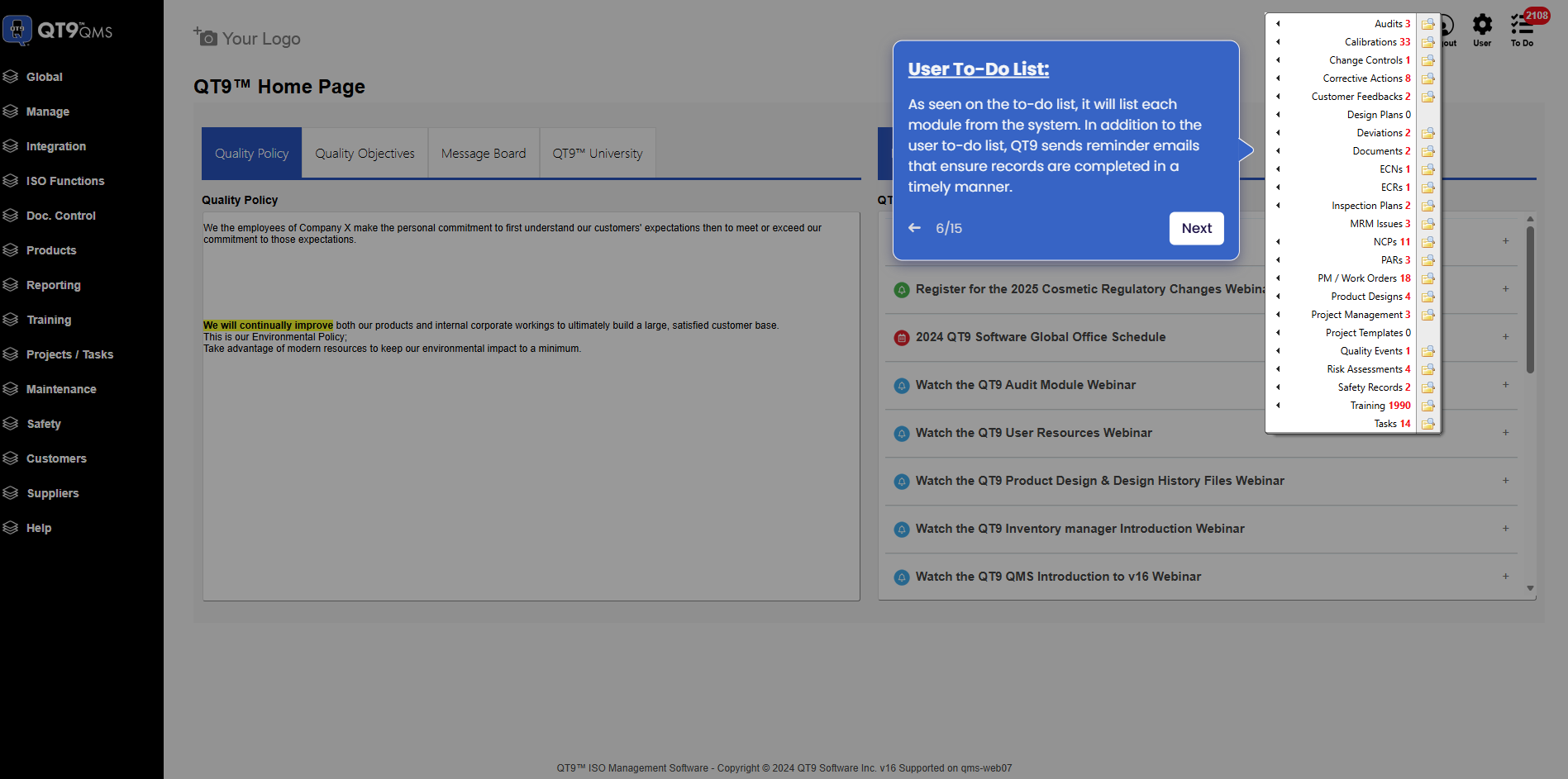
Simplify Quality, Compliance and Operations
Start a Trial
Try QT9 free — no credit card required.
Start Free→
Schedule a Demo
See QT9 live with one of our product experts.
Book a Time →
Get a Quote
Get custom pricing tailored to your team size.
Get Pricing →