Supplier Management Software: Qualification, Audits & Performance in QT9 QMS
April, 25, 2025
Full Transcript
So, good morning or good afternoon, everyone, and welcome to the webinar. We are very glad that you are able to join us today. In today's session, we are going to be focusing on the supplier management features in QT9 QMS. And we are going to we'll mainly be looking at the supplier management modules, but we will also be looking at the supplier web portal. And we will be looking at the ⁓ other modules that integrate with
the supplier management side of things. So, and finally we will look at our supplier reporting features, both in our QMS product and in our new business intelligence tool.
So before we start, I would like to go through some of the tools available to you in this webinar. First, take note of the orange arrow on the vertical toolbar. This is important because this arrow will either expand or collapse the toolbar view. When you expand the toolbar view, this will allow you to ask questions in the lower right-hand corner. We do have staff available throughout the presentation to answer your questions. And just to note, this webinar is being recorded and will be posted on our QT9 news feed.
So you can access on your QT9 homepage.
So, one more item I would like to go through before we get into the main content is our webinar series. These are a series of free webinars that we offer to our customers that help you to get the most out of your QT9 QMS software. We want to point out all of the features, functions, tips, and also usage cases that we've developed with our customers over the years. Because we have so much to cover today, we will be focusing only on the listed topics to respect the time of all attendees.
But if you have additional questions after this webinar, you can schedule a one-to-one session with our training team by email, emailing QMS support at qqtoninesoftware.com or reach out to your customer success representative. The last thing I would like to point out here is that at the end of the session, you will be invited to take a brief survey. It is really important for us to gather your feedback and it is much appreciated. This gives you an opportunity to tell us how you felt about the webinar.
Anything we can do to improve the webinar experience and the content that we provide.
So just looking at an outline of what we will be covering today. So we're going to look at an overview of supplier management and features within QT9 QMS software. We will be introducing the supplier web portal, surveys and evaluations, maintaining suppliers, how to get started, setting up the KAPA module for supplier interaction, creating a supplier evaluation, creating a survey, viewing the supplier portal.
And then we will look at supplier trending and reporting with our business intelligence tool as well as the reporting features within QT9 QMS.
So QT9 QMS software helps you to centralize your supplier information in one web-based system where you can track the status of supplier performance and communicate with your suppliers through QT9. We can help you with managing supplier documentation, including certifications and sharing control documents, supplier approvals and evaluations, corrective actions or supplier corrective action requests, supplier surveys and real-time reporting, and any use cases that you may have.
So just I wanted to give an overview of what we can offer in terms of supplier management and the interaction with the supplier. Some aspects need supplier input and some do not, but the supplier web portal is included for all QT9 QMS customers. It's not an additional product. You already have it. We have the maintained suppliers module where we can record all of our supplier data. We have supplier evaluations and surveys.
We have KAPA and non-conforming products integration and the process is the same for both. We'll be walking through the KAPA in detail. Finally, we have a document sharing via a document portal, which is accessible by the supplier via their supplier web portal. And just to note that only documents assigned to the supplier may be viewed in this portal, and I will show you this in a real life case.
So just looking at the structure. So we're going to be doing a lot of practical demos ⁓ in this session. And starting off with the basics, maintaining suppliers, how to get started, setting up the KAPA car module for supplier interaction, creating a supplier evaluation. We will also create a supplier survey. We will view the supplier web portal because I would like you to see what the supplier can see from their site.
And then finally we look at reporting and the QT9 business intelligence tool.
So just starting off with maintaining suppliers, starting off with the basics, how to get your suppliers into QT9 QMS. If you're already using this module, well and good. If you're not, please let us know and we can show you how to bulk import all of your details. We also have a data sync tool if you would like to integrate with your ERP or your MRP. Data will sync to QT9 QMS. QT9 QMS can maintain all of your supplier information.
Such as contact details, categories, notes, ISO certs, and expired dates. And I will show you all of this in the next section. So I'm going to now very quickly show you how to add a supplier. So I'm switching over here to our QT9 homepage. And to add a supplier, you just go to suppliers on the main menu and just pick on the maintain suppliers list.
Drop down and just select add new supplier. So we're going to add a new supplier. Supplier number is optional. If you have that system, you can use it. Supplier name, I'm just gonna call it Solar Industries. So you can put in your contact information. I'm just gonna put in this primary email. Phone and facts optional, default site is optional as well. Categories
These are completely customizable. So I'm going to show you where these are actually set up. These are actually in the maintain menu. So manage maintain and right down at the end you've supplier categories.
So this field can be used. This is, I just have level one, level two, level three. So I'm using a risk classification. But it can be used also for grouping suppliers, for example, suppliers of electrical components or plastic parts or say clean room services. So really however you want to use it, and these this is where they are set up. So just going back to the supplier record. So I'm gonna say this is level one high risk. So I'm going to leave this ⁓
unassigned here this type. The types are actually built into the system, but these are typical terms for the status of a supplier. So approved, pending approval, probationary unapproved. I'm going to leave this unapproved because we actually have an automation built into the software whereby the approval of the supplier survey by yourself will automatically change this type to approved. And we will see that in the supplier survey section. So this will actually change automatically by QT9 on approval of the survey.
So notes can be used for any purpose. Some customers use this to indicate which service or product this supplier is approved for, the scope of approval, anything at all, additional contact details you can put in here. To allow the supplier to use the law, the law, sorry, the supplier web portal, this next section needs to be completed. So it can be you can complete it like this manually, or QT9 will actually auto-populate it, and I'll explain that shortly. But for now, I'm just going to pop in.
A login name and a password. I'm just keeping it simple for for the purpose of the demo. And I will now save this record.
So you will see on saving the record that a lot of more tabs are opening up here. And also you will see the option to send account info. So I'm just going to select this. So this is what you would do if you wanted to send the account information to the supplier and invite them to join. So you can customize this message. And as it says here, login names and passwords will be will be generated if not already assigned. Supplier access will be granted and so on. So this is again.
the automations built into QT9 just to make your lives a little bit easier. So I'm just going to cancel out of that. And I will quickly go through these tabs, but I will use a different supplier just to show you the interaction with the record. So I'm going to actually go to this supplier that I'm using for my demonstration today. So Angel Medical.
So I'm going to start with documents. So you can see that I have two documents assigned here to Angel Medical. So this tab allows you to assign documents from current documents to the supplier. So I'm just going to show you how this works. You can select a document. I'm going to just pick this one, add assigned document, and tick assign selected.
So this is all you need to do to add this document. So when we look at the supplier portal, you will see that the supplier can only access. So they're going to log into the portal and they're going to see three documents and that's it. So you very much can control what they can see there. It will always pull, by the way, the current revision of that document. So for example, if you wanted them to follow a particular specification or a particular drawing at a particular revision, you can use this feature and say you need to check the portal always for the most current revision of the document.
You do need the doc portal feature, by the way, to use this feature. So the next tab I'm looking at is the audits. So we're not covering the audit module in this webinar, but this module, the audit module, can also be used with respect to supplier auditing and monitoring. Certifications is where you can upload the supplier quality certificates with an expiry date, by the way. When this date is approaching, you will be reminded by QT9 notifications, and you can even customize.
Do you want to be notified ten days in advance, thirty days in advance, completely customizable? This helps to ensure that you always have your supplier certifications to hand and that you're always looking at the valid version.
Corrective actions and NCPs. I'm taking both these tabs together because they both directly integrate with the supplier portal. And this is where you can see, and and indeed you can even if you're not using the supplier portal, you can see all the corrective actions or NCPs relating to that supplier. So for example, if you were doing an annual review of that supplier, all the information that you need is actually here. ⁓ These other tabs here: ECRs, inspections, quality events, risk assessments.
So these are all modules within QT9 that you can link to a supplier. And then finally, I'm going to look at evaluation responses. So these are essentially all the evaluations you've carried out in that supplier over time and also surveys that this the supplier has completed and submitted to you over time.
The related files tab is useful because you can upload any documents relating to this supplier, for example their quality manual, and as with all of the records in QT9, you have unlimited file attachments. So essentially you have all of your information to hand in one easily accessible location.
So I will now go through how the corrective actions integration works. And again, I don't need to cover this under non-conforming products because it works in the exact same manner as the corrective action. So I will start with the corrective action that I've already set up. So ISO functions and corrective actions. And we are looking at ID fifty-seven.
So, this is an issue that we had with Angel Medical. This is assigned to the supplier by the drop down here. So I'm just going to delete that, and you can see that the full list is coming up of all my suppliers. So I want to assign to Angel Medical. You tick this button here, you tick this button here, and notify supplier. So once you notify supplier, then they will be notified, they will get an email and they will be asked to respond to this corrective action.
So it's essentially a supplier corrective action request or a scar.
So this is a good also if you select supplier issue under corrective action type, and these are all customizable by the way, but if you select supplier issue, you will not be able to save this record until you have assigned a supplier. So this is a good failsafe system to ensure that you record the supplier if you have identified the issue as being relating to a supplier. So now if we go into this tab here, supplier response, so this is a user defined field.
We also have a user-defined field for the overall corrective action. Most of the records in QT9 have this feature of user-defined, but for the KAPA corrective action and the non-conforming product record, we also have a user-defined field for the supplier. So again, you can completely customize what responses you want from your supplier with this user-defined field.
They're completely customizable, and this is done by the way in global settings. So, and again, it's this is a global, so we do it once and it applies then, and you can of course modify over time as well. So looking at the supplier as at the supplier user defined field, you will see that I have four sections. So I have containment correction, root cause analysis, correct to preventive action, and then supplier files.
UDFs are mainly used for gathering information, but they can also be used as a prompt or reminder to the user. So this would be an example here. If applicable, please ensure that you've attached to any relevant documentation. So user defined fields, I know you may not have come across these, but there are they can be the UDF questions can be open or closed, multiple choice, as you can see here, numeric input only.
So you have a lot of options in terms of how the questions are designed, and you can have, as you can see, multiple sections. So it's like a little form within the record. Also, you can make the questions required or not required. You can see with a little red star here indicating that it is a required field. And this just means that you cannot submit the record. Say, and of course, this is completed by the supplier, not by you. It cannot be submitted by the supplier until they have completed all the required questions. So
This is not something I'm typing here. This cannot be edited at this side. This can only be edited by the supplier. And I will show you this how this is done from their side. Again, exact same system works for the non-conforming products module. So I am going to move on to supplier evaluations. And as I said, I will complete all this in the supplier portal and you see how it works. And I will go back then and show you how it looks like from the user point of view.
But right now I'm going to move on to supplier evaluations.
So, with the supplier evaluations module, you can customize evaluation questions, you can generate reports, you can use your own scoring methods, and you can email the suppliers directly from the record. The supplier can also access all their evaluations relating to them in the supplier web portal, which we will show later on. So they can see all of your prior evaluations of them. Just looking at supplier evaluations and looking at just dipping into some ISO requirements here.
In ISO and other quality standards, supplier monitoring is required, you know, at different levels depending on the industry. Here are a few examples. So from ISO 9001, ISO 13485 from the medical devices point of view, IATF 16949 for automotive. So you can see I just highlighted in bold their criteria for monitoring of performance reevaluation, monitoring reevaluation, and you should have a documented process to evaluate supplier performance.
So again, this our supplier evaluation modules that I'm just going to show you helps you to demonstrate compliance with these requirements.
So supplier evaluations can be categorized. So there's different ways you can set these up, and I'm going to go through this with you. So you can set them up by year, for example. So some of our customers just have, you know, once a year, they do an evaluation and they just include all their suppliers. So you can attach one or more suppliers to an evaluation. Or you could do it by level of risk. So for example, you know, you might have a different evaluation for high risk, medium, low risk, or even depending on the type of supplier that you're dealing with.
So again, it really is up to you how you use this. There's no limit on the number of surveys and all of them are customizable. So again, with the level of risk, for example, this could be a risk management tool.
And you might use different terms by the way, ⁓ such as critical, non-critical, you know, standard critical type of thing. again, it really is entirely up to you how you want to design this. So let's move on and I will show you how the supplier module works in supplier evaluation module works in practice. So I'm just going to go back to our Qt9 site. I'm just going to go back to the homepage just to orientate ourselves.
And I am going to look at the supplier evaluations module, which is under suppliers and the first item evaluations.
So I will structure this part of the demo by firstly showing an open supplier evaluation and how you can compare suppliers using this feature. So one that I prepared earlier. So I'm taking the example of number five, and you can see the evaluation questions here. And again, these are all can be added to they're coming from a library of questions. You can see the suppliers that have been attached are here. And these are these evaluations are closed for these suppliers.
You can see the individual evaluation for the supplier from this point of view if you wish. So I'm just going to open for the first one here. And you can see that you can tell this is for this supplier, ACME Medical record is closed. You can see all the comments, you can see the scoring, you can see the overall percentage and the total score and the total points available. So you can see all of this for the individual suppliers. I'm just going to go back to the supplier list.
You can also compare the suppliers by going to this option here, print evaluation results. So here you can see this opens up into a new window. And of course, with all of these viewers, you can export to PDF or Excel, whichever it suits. But as you can see very clearly there, if we wanted to compare these three suppliers or just to see all your suppliers in a list, you've got the max points, you've got the points scored, and you have the percentage. So you can do this as a comparison. I'm just going to close out this.
We also have an email email option here. So you can actually email to the supplier, just even if you had 10 or 20, you can do this all in one go, ⁓ just by selecting everybody from the drop down. And as it's explaining here what's going to happen, a PDF copy of the supplier's evaluation will be attached to the message. Suppliers that can log in will automatically receive their login information as well.
You also have an email history, which is useful because it will show you ⁓ traceability as to when you shared the evaluation with the supplier, if that was relevant. Of course, they can still access them in their portal, but this just gives you some traceability here. Of course, we have a timeline on all of our records, of course, in QT9.
So I am now going to create a new evaluation. So you just go to new evaluation, you select the site. So again you do have to select the site. I'm just going to leave it at the default. I'm going to give it the name of
twenty twenty five evaluation of equipment suppliers. So again I'm grouping suppliers in this case by type and I'm going to just put the date create new evaluation.
So this is the most recent one, it's just showing up here at the top, so it's number 13. And I'm just going to select this line item. Questions and question points need to be assigned before the evaluation responses can be added, of course. So you need to add the questions first. So when you select add question,
The first thing I'd like to point out is that you here's where you set the default points. So in QTNI, it defaults to five, but you can change this to ten, twenty, one hundred, whatever your scoring system. This is what I meant by the customized scoring method. You can actually put this in here. I'm gonna leave it at five for this because I have my question set up like one to five, but again, you can completely up to yourself how you use this.
You now have three options with regard to questions. You can import all of the questions from another list, so by using this option. And if you if you select this, it's going to actually give you the other evaluations that you can copy over. But I'm going to take it from the list of questions and I'm going to create a new question. So I'm just going to select a couple of items here. ⁓ openness to audits, cost competitiveness, and
Responsiveness of customer service. I'm just gonna add this.
And then I'm going to add a custom question or a new question, I should say. So I'm just going to pop it in here.
And add new list questions. So the one that I put in here was assign a rating to their delivery performance. And again, I put in the scale. One is never on time and five is always on time. So again, this is we want to look at their on-time delivery. So add selected questions to evaluation. And now we will see that fourth question showing up.
So I'm going leave it at that in terms of questions and move on to how you assign suppliers. So you just go to the next tab, working from left to right, and you just pull up your suppliers list. And again, I'm going to select, you can select one or more by the way. I'm just selecting one for this example. Add selected suppliers, and then tick and add selected. And now your supplier has been attached to this record.
So in order to actually carry out the evaluation, you just tick on this button here, which is create evaluation response. It's just warning you that you cannot edit after you do this. So I'm just gonna select OK. And then you just work down through the record. So
How would you assess openness to customer audits? I'm just typing very short answers here for time purposes. I'm going to say it's good. I'm going to say they're going to give them a four. So cost competitiveness, I'm going to say, you know, average and make that maybe a three. Responsiveness to the customer service team, I'm going to say they're good. So I'm going to actually go give them a five there. And delivery performance, I'm going to say they're mostly on time.
On time, so I'll give that a four. You can make public notes comments. So, for example, you know, we need to look at pricing maybe, and because we said average, and the supplier can see this, so I'm just going to save the evaluation, but you can also just go straight to complete evaluation as well if you want. So, I'm just going to actually complete the evaluation.
And it's just going to lock that evaluation then for future editing.
So you have the option of emailing the supplier at this point. And I will also show you again, you tick and just put in the details here. You can customize the message. And I'm also going to show you in the supplier portal how they can access this information. So that is supplier evaluations. I'm going to move on to customer surveys.
So this, sorry, I meant to say supplier surveys. So looking at the QT9 QMS supplier surveys module, it allows you to create surveys which your suppliers can complete online via the supplier web portal. You can set up email alerts, you can share files with suppliers, suppliers can upload files such as their quality certifications, and you can also manage supplier approvals. So applications for this module, there is actually more than one application, and I will demonstrate the first one, which is creating a survey for potential new suppliers.
I'll also show you examples of a survey requesting information and a survey having the supplier confirm receipt of documents. So there are a couple of different ways you can use this module.
So I'm now going to go back to the QT9 site and I'm going to look at creating a survey for potential new suppliers. So again, I'm just going to go back to the home page and suppliers, and this time we're going right to the end supplier surveys. Firstly, I want to point out you can copy an existing survey and you've the option of editing after it's created. But for this demonstration, I'm going to show how to add a new survey. So I'm just going to again you
You do select the site, so all of our records are linked to sites in QT9. I'm just going to very quickly copy and paste this. So Survey for New Suppliers 2025 Q three.
Under this section here, supplier status changes. So this is the automation I mentioned earlier on. So if you take these two buttons, so essentially what this means is that when the supplier submits their completed survey, their status in the maintain suppliers module here changes to pending approval from unapproved to pending approval. And then when you actually approve the survey, it will change to approved. So this is an automation that's built in to Qt 9. Optional to use, of course.
So I'm going to save that and I'm now going to populate this. So what you need to do is just select add section and I'm going to just put it in here company information.
And I'm going to say that this is maybe relating to maybe financial and legal information and just
save this. So now we've added a section. We add the questions then next. So again we are going to actually you can actually import questions. So I'll do that first. So you can import from a list of questions and I am going to just scroll down here and pick some ones relating to financial and legal and okay just leave it at that.
And I'm just going to show you how to add a question. So I'm going to say ⁓
looking for billing contact details. So you have different options with the questions, a little bit like the user-defined field questions, open, closed, and hybrid. So now I'm just going to add another section just to show you how it looks and I'm going to call this quality information.
And just quality and I will attempt to correctly spell co quality. So excuse me for that.
And save. So I'm going to import questions here for this one. And I'm going to, for example, have you attached your current ISO certificate to the My File section? So there is a section in the supplier survey where the supplier can actually upload a file and it'll come back to you then through QT9 and we will see an example of that.
So this is an example of a hybrid question, by the way. So if it's like yes or no, if no, please provide reason. It might be, well, we're not ISO certified yet, or something like that, or we have a different certification. So the next thing you need to do is actually assign approvers. So I'm just going to assign myself here.
And I'm going to assign a couple of suppliers. So I'm going to assign this supplier and actually this new supplier here. And again, just going to tick and add selected.
So next step is to notify the suppliers because the this survey won't show up in their portal until you actually notify them. So you can customize the message here. So for example,
Just please complete attached ⁓ survey. So something like that and just send info.
So now the supplier is has received an email asking them to log into their portal. The link will be provided in the email, and they are prompted to respond to this survey. So before we move on from supplier surveys, I just want to show you some other applications for the supplier surveys. So survey eight is an example of where you can ask the supplier to acknowledge receipt of a document.
So, for example, please confirm you have received document, etc. revision four, and you can attach the document here. So you can do survey attachments as well. So you can both send files to the supplier this way, and they can actually send files back to you under they have a my file section in the supplier survey. So that's one example there different use of the supplier survey module. And then I'm going to show you this for ⁓
Asking them to provide you with documentation. So have you attached your ISO cert to my file section? Again, it's a hybrid question, but in this case, they can send through the attachment through the survey mechanism. So again, it's just keeping things within QT9. And of course, everything is automatic. When you notify the supplier, that email goes out automatically. You don't have to do anything else. So some additional functionality there.
So I'm now going to move on and have a look at the supplier portal. So just moving back to the presentation here. So with the supplier web portal, this allows you to use web-based surveys, manage supplier approvals, as I was showing you the automation with the supplier ⁓ surveys, share files, including control documents, have the supplier respond to KAPAs and non-conforming product requests. Just want to note
All QT9 customers have this portal, it is already included. And the supplier web portal is also licence free, meaning that there is no limit on supplier logins.
So this is what ⁓ you would see in the supplier portal typically. Now again the documents will show up if you have the doc portal, but you're either going to have four or five items showing up in your supplier's web portal.
So please note that I am showing you the web portal, but please note that you as the customer would typically not need to log into the supplier portal, but you may wish to do so when you're setting up a supplier or testing how something works, or you might want to troubleshoot if the supplier is having an issue. So I'm now going to go back to our QT9 site, and I just want to show you, we're just going to log in, but I need to show you how to do that.
So the first thing I would do is I would go to my supplier, and the one I'm using for this example is Angel Medical again. And I would just notice, I would take notice of the login name and password. I've kept this very simple, of course, for the demo, but you can make these more complex as you wish. So and note that I have assigned these documents to Angel Medical. To access the supplier portal, you need to log into a different URL. This is easy to remember.
But I want to show you where it is in global settings. So global settings and under portals.
And under supplier portal, this is your URL access for your supplier. So essentially it's your own ⁓ URL for QT9, except that forward slash suppliers. Okay, so I'm going to log out here. So allowing me to log in. So I just, if you can see what I'm doing here on the address bar, I'm just changing this to suppliers. So as I said, this isn't something you'd normally be doing, but I just want to show you what it looks like.
So the login name, ⁓ I'm going to log in as my supplier. You are prompt, the supplier is prompted to enter their name and password. And again, this is for traceability, so that when we log in, you can see Angel Medical, Angela Jones, and again anything that this person does, your supplier does, it's going to trace back to that person. So you can see here that there are five sections here, and we also have a help file for the supplier to use.
So, corrective actions and non-conforming products, this is where the supplier can respond directly to issues assigned to them through the QT9 record. The evaluation section is where they can see the evaluations that you have carried out on them. Surveys is where they need to respond to a survey assigned to them. And documents then is where they can view documents assigned to them. So I'm just ticking on this link here, and you'll see it opens up in a new window.
And they can literally only see the documents that you have assigned to them. So there's no worries there.
So just going back to the supplier portal, ⁓ I want to look at show you how the corrective actions side of things works. So I'm going to use the example that we had earlier on, which was car 57. And for the supplier, you can see that it opens up like this. It defaults to open. They could look at you know, all open submitted closed, but defaults to open. And to respond to this car, and again, they will get the email asking them, prompting them to do this.
They just select the edit icon here. So when I do that, it opens up the record and it highlights in yellow the important aspects of this form. So print, submit, save, also that the corrective action is open, it gives you the due date. And down here, then you have the supplier response section and the supplier file section. So these two areas are the only place that the supplier can actually edit, but the supplier can view.
the information in the other tab. So I just want to point that out. They can see it, but they can't edit anything here. Again, I'm typing nothing is happening. Okay. So they can only edit these fields here. So I'm just going to very, very quickly run through this. So screening being carried out. Yes. Whether it's effective parts found, I'm going to say 10. I'm just going to say quarantine.
⁓ and again you have the minimum questions that need to be filled out. Please tick whatever root cause analysis method. I'm gonna say five Y. If other not applicable, but again, this is an optional field. Enter results, I'm gonna say damaged.
equipment and I'm going to look at
For corrective action, then corrective or preventive action, I'm just gonna pop this in again, just to give you an idea how it looks. And again, ⁓ if applicable, please ensure all relevant documentation is attached. So I'm gonna say either yes or not applicable. If they were attaching something here, I'm just gonna save this before I move on.
They can attach files under the next tab here, which is supplier files. So I have a few already attached here, but there are instructions as to how to do it. Again, just add file, just put in display name, choose your file, save, upload, and done. So again, you your supplier can actually not just fill out the you know the basic questions that you've asked them, but they can add more information ⁓ if required or if they would like to share, maybe it's requested.
So once all the questions are answered and the files attached as applicable, you can go ahead and submit and you will now see a message popping up saying that the responsible party is being notified. So you as the customer will be notified that your supplier has completed the supplier corrective action request.
So I'm going to move on to the supplier evaluations. So again, if I just go to home, it'll just bring up this list and you can go from these tabs as well. But I'm just going to look at evaluations. So I just want to show you how it looks here. So this was the one, our example. So you can see that the supplier can see the scoring and also the comments. They can see what were the total points available, what was the total score, and what was their overall percentage.
If you attach files, they would be visible here, and you can see the general notes as well. So you might want to put in some more detail, adding a file, or you can pretty much you have you know more or less unlimited space in these text fields. So I'm just going to move on to show you now supplier surveys, and we are going to complete this one. So this was the one we just did, number 16.
So again, the from the supplier perspective, they will get a notification and a link, and they just have to click on the edit icon, brings them into the survey. So you can see here ⁓ there is, I'm going to start with the first section. So what is the company's register just address? So I'm just going to put in Killarney. What is the legal status? I'm going to say it's a private limited company. And billing details, I'm going to just say Angela. And
We just say the email address is in there as well. You save the section responses. So this is important, this needs to be done, and it will confirm up here that they're saved, and it's indicating here that it's saved. So again, it walks the supplier through everything they need to do. Quality information, I'm going to say, have you attached your ISO certificate? And I'm going to say yes. Save section responses. We can then move on. So you have also space for the supplier to make comments just by adding comment.
And if they wanted to add something, and again, without going outside QT9, everything is happening within QT9. They can attach their sorry, this is if they if you attached something for them to view, it will show here. And here then is where the supplier can actually upload a file. So for example, upload their ISO certificate, they can do it here.
So when you have finished all of this, you can then just submit survey responses. Now the notification will go to the approvers of the survey. You will see the survey submission delivered to the assigned approver. So again, they get a notification through QT9. This is the person designated to review and approve the survey. So quick walkthrough the supplier portal. So again, as I said, this is not something you're going to be
Accessing this is for your supplier, but you can access it. And I just wanted to show you how easy it is for your suppliers to actually use this portal. What I now want to do is show you how this how these records look in your own QT9 site. So I'm just going back into the main URL just to get to the login page and I'm going to log in here.
And logging in. So the first thing I'm going to do is I'm going to go to ⁓ we just did the supplier surveys, so I'm going to show you the surveys. So under suppliers, under surveys, and this was the one that we just did, number 16. So we can see that for Angel Medical this has been submitted. So to see the actual survey.
Again, view edit survey.
You can see the responses provided by the supplier. Again, if there were files attached, they would show under here. We don't have in this case, there's no comments, but again, these can be added. So from the approver's point of view, you can approve or reject. If I select on reject, you will see that it will attach a PDF of the survey. It was giving you the reply to the person you're emailing. So these are the suppliers' contact details, and you put in rejection notes. For example, you forgot to attach files.
I'm just gonna cancel close that. I just want to approve it. So
And then approval notes are optional. So I'm just gonna go ahead and ⁓ approve this record.
Okay, so that is supplier surveys. And ⁓ finally, before I get on to the final section on reporting, I just want to show you how the corrective action response shows up from the supplier perspective. And again, everything you will be notified through the system. So you can see here that all the notes that the my extensive notes that I made in this Kappa form are coming through here. So this again, this is not editable from your side, this is edit editable from the supplier side.
So finally, I'm going to look at reporting. And again, thank you for your attention so far. We have a few options for supplier reporting. We have the supplier evaluation module, which we just looked at. So you can see the performance rating can be generated. You can compare suppliers. We also have the approved suppliers list in QT9 QMS. We have corrective action and non-performance reporting. And finally, we have our business intelligence tool.
So our business intelligence tool is it offers an easy way to view your data in real time. You can create your own dashboards. We'll have a look at an example here. You can share dashboards and reports, you can order custom reports, and you can set up your homepage so that when you log in, you can see the dashboards that you are interested in. This is just an example report from the dashboard. So this is looking at supplier corrective action requests by status. So we'll have a look at that.
So I'm going to just go back to the site and I'm going to start off with the reporting available within Qt9 QMS. So supplier valuations we looked at, and I'm going to show you under reporting, we have the first item approved suppliers. So this is going to give you a list of all your suppliers that have the status of approved suppliers.
So this is very useful, especially you can see highlighted in red if the certificate has expired. Now, again, you will be notified and reminded when this date is approaching, but you can also do a quick check and see if there are any dates showing up in red. You can, of course, export to a PDF or to Excel at this point. Just going to close that down. I'm not going to look at this in detail, but we do have corrective action reports and non-conforming product reports. So
I'll just look at corrective action reports. And from this, you do have to set it up here, but you can actually filter for in the field under supplier, and you can actually run a report in terms of your supplier and corrective actions. And you can do the same for the non-conforming products reporting facility. And again, we have instructions as to how to use all these reports in the help center. And of course, get in touch with us if you need any help with that.
And now I'm going to look at our business intelligence tool. So I'm just going to ⁓ open our
demo site here. So here is where if you have this tool, it's going to show up on your home page here. You can log in here from this page. And it's just bringing me to the login page for the BI tool. So here I'm just going to select QMS and sign in.
So the BI tool comes preloaded, by the way, with several dashboards and reports that you can and you can create unlimited dashboards and you can order additional reports. For supplier reporting, we have a dashboard that I created earlier. So it's just under dashboards and view. It's just loading all the dashboards. And I will show you the one that I created for this example. So it's supplier quality.
So you can see here that we have corrective actions by status and responsible party by type and by problems. So all of these, this data is just relating to suppliers and corrective actions. So again, you can build these dashboards and make whatever relationships and fields that you like. This is one that have built, and again, this is actually built in as well into one of the default dashboards. You can edit the date range here. So you could look at for a particular year, particular quarter.
You can select suppliers, one or more suppliers to see the information for that supplier. Just scrolling down here, I'm going to just open up this. So if you tick on this arrow here, it actually opens up this in more detail. And you can see that you can drill down and, for example, see the total corrective action. No, this is a demo site, so there's a lot of open corrective actions, but you can see the way you can drill down and see the corrective action count for these different suppliers.
You can also, by toggling this, actually change the way the graph looks very quickly and very easily, depending on whatever visualization that you like. And so very easy to use. And to get back up into the main page, ⁓ I just again select that arrow. So and I wanted to also point out this is a super handy feature that you can actually export this page to PowerPoint or PDF, for example.
The reason I highlight these is because these are very, very good examples of what you could use as part of a management review. So if I export to say PowerPoint or PDF, it actually does headers for all the different sections and it's all kind of done for you. So it's essentially it's saving you time when you're preparing for your management review or your any kind of quality review meeting. So again, that is our supplier, this is our QT9 business intelligence tool.
And this is just an example of what we can do. There's huge, huge capability within this tool. So I'm just going to go back to our presentation. And essentially we're at the in the closing straight. So that is all we have for today. And I want to thank everyone for attending the webinar. And I really hope you found this session helpful. I know we covered a lot, so I appreciate your attention.
I want to point out again that if you do have any questions or you want to expand in your modules, we have the resources here. Always reach out to us. You can talk to your customer success reps. We are always here and ready to answer any questions you may have. As I mentioned earlier, there will be a quick survey at the end of the session, and we would really appreciate it if you could take a few moments just to share your feedback with us because it's important for us to know how we are doing and where we can improve on these webinars. So I'm going to go ahead and wrap things up for now.
And thanks again for your time and I look forward to seeing you again very soon. So bye for now.
Questions From This Session
How does the Supplier Portal work in QT9 QMS?
The Supplier Portal allows suppliers to securely access corrective actions, nonconforming products, evaluations, surveys and assigned documents. Suppliers can submit responses, upload supporting files, review evaluations, complete surveys and access documents shared by your organization without needing a QT9 license.
Can suppliers respond directly to corrective actions and supplier corrective action requests (SCARs)?
Yes. Suppliers can receive notifications through the Supplier Portal, review assigned corrective actions, answer supplier response questions, upload supporting documentation and submit their responses electronically. Once submitted, QT9 automatically notifies the responsible party for review.
How do supplier evaluations work in QT9 QMS?
Supplier evaluations allow organizations to score supplier performance using customizable questions, scoring systems and evaluation criteria. Multiple suppliers can be evaluated, compared, and tracked over time, helping quality teams monitor supplier performance and support supplier qualification programs.
Can suppliers upload certifications and supporting documents through QT9?
Yes. Suppliers can upload files directly through surveys and corrective action responses. This makes it easy to collect ISO certificates, compliance documentation, corrective action evidence, quality records and other supplier-provided files while maintaining traceability within QT9 QMS.
How can supplier performance be tracked and reported in QT9 QMS?
QT9 QMS provides supplier evaluations, approved supplier reports, corrective action reports, survey results, and Business Intelligence dashboards. These tools help organizations monitor supplier quality trends, evaluate supplier risk, review certification status and support supplier management reviews.
Key Takeaways
Presenters
See QT9 QMS in Action
Learn how QT9 QMS helps manufacturers manage supplier audits, corrective actions, and supplier compliance from one centralized platform.
Request a Demo →Explore QT9 QMS in Action
Take a self-guided tour of QT9 QMS and see how organizations manage audits, supplier quality, CAPAs, training, document control and compliance from a single platform.
Launch Interactive Tour →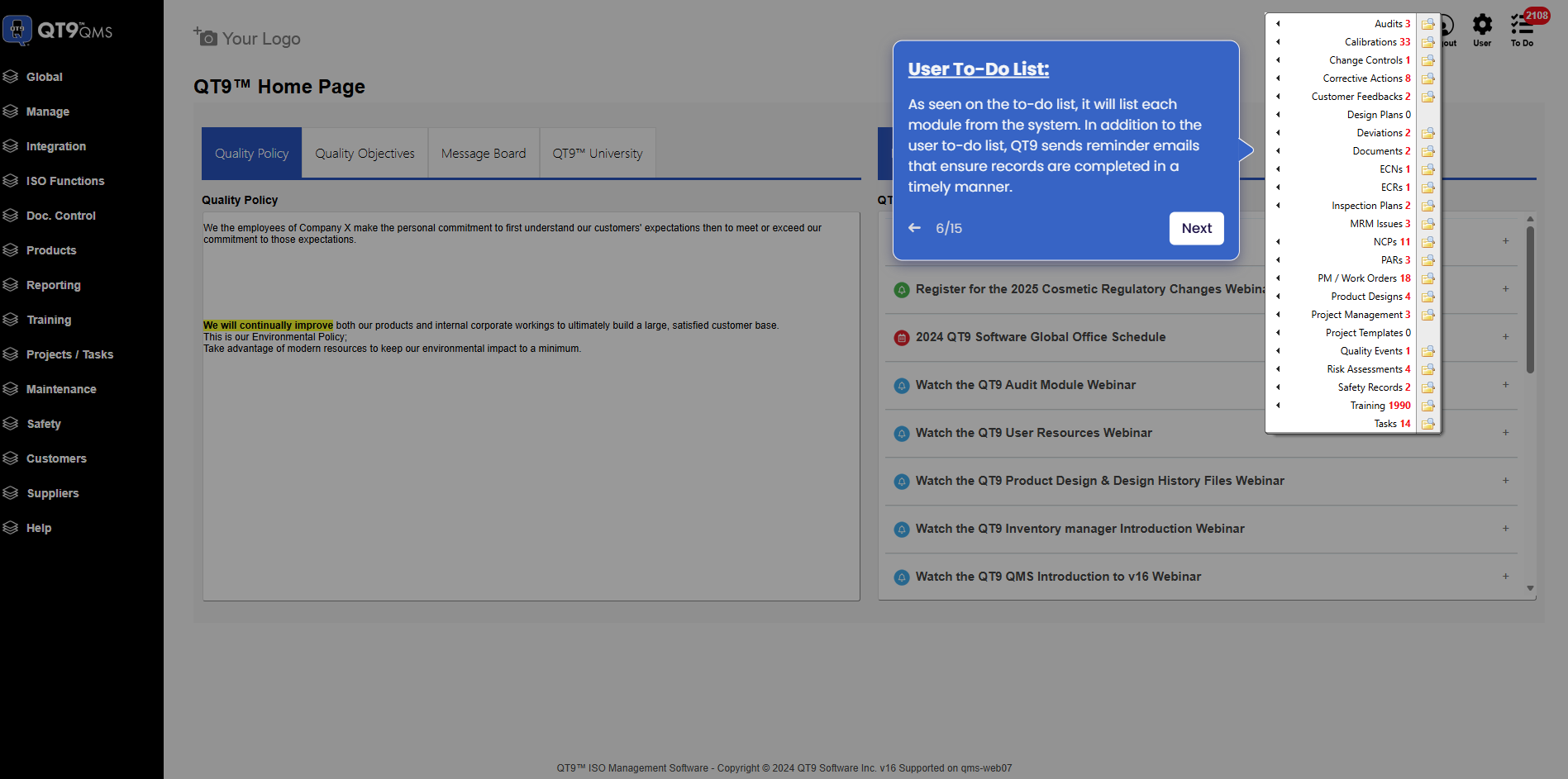
Simplify Quality, Compliance and Operations
Start a Trial
Try QT9 free — no credit card required.
Start Free→
Schedule a Demo
See QT9 live with one of our product experts.
Book a Time →
Get a Quote
Get custom pricing tailored to your team size.
Get Pricing →