How to Manage ISO & FDA Audits in QT9 QMS
October 22, 2024
Full Transcript
Good afternoon everyone and welcome to the webinar. We are very happy that you can join us today. Today we're going to be focusing on managing audits using the QT9 audit module. So over the course of today's session, we're going to be talking through how to use the QT9 audit module to set up and manage your audits, both internal and external, how to use our new audit checklist feature and also managing auditor competence and training.
So before we get into the main content, I want to go through some of the tools available to you in this webinar. Firstly, take note of the orange arrow in the vertical toolbar. This arrow will either expand or collapse the toolbar view. This is important because you will see that there is an area for questions and we do have someone available to answer any questions that you have over the course of the webinar. Just to note.
This webinar is being recorded and will be available on our QT9 newsfeed afterwards on the home page.
So a little bit about our webinar series. This is part of our free webinars that we offer to our customers that provide our users with the best features, functions, and tips inside of our software system. If you have additional questions after this webinar, you can schedule a one-to-one session with our training team. You can do this by emailing support at qt9software.com. They'll be more than happy to help you and connect you with a member of our training and implementation team.
The last thing I would like to point out before we get into the main content is that at the end of this session, you will be invited to take part in a brief survey. Any feedback you can give us on the webinar is always greatly appreciated. This helps us to tailor our upcoming webinars to make sure that we are hitting the right topics that we need for our customers.
So now I want to introduce what we will cover in today's webinar in Outline. So we will be looking at the types of audits, first, second and third party, setting up the QT9 audit module. We will be looking at our new feature, the audit checklists. We'll be using the audit module to actually carry out audits and the follow-up. We'll be looking at classification of non-conformances. And we'll also be looking at auditor training and competence and how we can use QT9 to manage that also.
So what is available in our audit modules? So we can schedule and we can manage audits. We can audit against any standard. We can link to corrective and preventive actions. And we can also just going into more detail. We can use the audit module to create processes. And this is especially useful for integrated audits where you have more than one standard to deal with.
You can manage approvals, including user group approvals, which is a new feature that came with version 16. You can also attach related files, you know, such as an audit plan, evidence, signature sheets, that kind of thing, anything related to your audit. You can link current documents, so you can actually link live documents to your audit record, which makes it easier for your auditors, saves them time, make sure they're accessing the correct documents, and it also helps to find the scope of the audit.
We also have custom checklists and we'll be looking at these today. All of our records are time stamped. We fully validate electronic approvals. We also have email alerts and audit reports to keep everybody on task with the audit program. And finally, we have real time reporting ⁓ with our trend analysis, data mining and our business intelligence tool.
So just looking at a very top level, we're looking at the audit types. So I'd like to start out by introducing these three types of audits. So we've got first party, second party and third party. So first party is essentially a self audit. It's an audit by the company on their own processes. Second party then includes either supplier or customer audits. And then you have third party, which is your independent certification body audits like your FDA audits, NSAI,
BSI, TUV, Compliance Authorities, all of that, basically a third party. So we can actually process all these types of audits through the QT9 audit module with the supplier audits. We do also have a supplier evaluation module. It's outside the scope of today's webinar. But if you're interested in that, please get in touch with our team and we will ⁓ organize training for you or guidance. Customer and third party audits then.
They may be processed through the QT9 audit module and I will show you how we do that. using the QT9 audit module is actually a great way to capture customer audit reports. Often after a customer visit, and I'm sure we've all had this experience, you either have a formal audit report or a list of items that the customer wants you to correct or maybe improvement items, a ⁓ list of items that you need to look at and they will like
to look at these again the next time you come in or they might look for updates. So we have these linked modules of corrective action and preventive action. So when you use the audit module to process ⁓ an external audit report, you can actually link into your system to your cars, your PARs. This then makes it easier to actually track these actions and to bring them up. If the customer looks for an update when they revisit the plant, you easily can pull up.
These were the items we looked at the last time. These were the corrective actions. These were the improvement items of what you decided to do about them. Similarly, for external audit reports, again, very easy to pull up the audit report from the previous year with linked actions when you're preparing for the annual certification or surveillance audit. Just a note in QT9, we have audit types and audit categories. So this is part of the setup of the audit module. Audit types is where you determine if an approval is required.
And audit categories is where you determine the frequency of recurrence of the audit. So we will be looking at that next.
So I just want to, before we go any further, I just want to give you an overview of the basic settings that we're going to be looking at today. So we have auditors, audit categories, audit types. We have our checklists, we have our questions, processes and quality standards. We will look at auditors, categories and types first, just as a group. So I'm just going to ⁓ move to Q2.9 site and we'll just have a look at where those settings are.
OK, so you should be seeing QT9 homepage here. So just looking at the ⁓ types first. So in order to access this menu, by the way, you need to be a site admin or a global admin. So just to let you know, this is all this menu here. So I'm going to go to manage, maintain and then audit. So these are all your subheadings here for the audit setup. So firstly, I'm going to go to audit types.
I use types to identify first, second and third party audit. And of course, you can use these categories as you wish. This is just a way I set them up for illustration purposes. The types is where you determine if approval is required or not. So you can see here with first party approval required, second party approval required and third party, I have said that approval is not required because these are for processing a report that a third party has approved.
We want to bring it into our system so we can generate those corrective actions and preventive actions. So again, when I opened this record, you can see the option here, approval required. If I wanted to change that, you would just tick and save and that's done. So just to show you that ⁓ that setting, the next setting I want to look at is the audit categories. So again, manage, maintain, audit and categories. I use these for setting up custom recurrence.
So again, you can see the audit category, the title here, and then the recurrence. And this is in months. So you have 36 months, you have 12 months, even one month. So for example, your certification or research audit is typically every three years, 36 months. Customer audit, they might come in once a year. Your internal audits maybe once a year. And then for example, like a housekeeping audit or monthly. So you just set in one month here. So.
The beauty about this is that when you set up your audit first time around, if you have a recurrence in that audit, when you close that audit, it automatically prompts you to set up the next audit. So we'll see that in the worked example. So it makes sure that your audit program is, you you always have the next audit in the pipeline in your schedule. So anyway, the next setting I would like to look at is auditors.
So again, manage maintain audits and auditors.
So anyone you are going to be assigning audits to, you need to set them up here first. So for the most part, it's going to be internal auditors. But if you are using the third party option, you could put in your BSI auditor, your FDA auditor, or even your customer. If you want to assign an auditor to your audit reports, they have to be set up in here first. So again, this is pretty straightforward. I'm just going to do one as an example. So again, I'm just going to say John.
Okay. And again, company, could say this is our company. Email, put in the email address. Register. Again, if it's an internal auditor, you can just leave that blank. You don't have to fill out all these fields, but you do just have to save. So I'm just going to save the auditor and you can see now you're getting the option to assign the sites. So again, you need to make sure that your auditor is set up here and also that they're assigned to the site that you want them to have the authority to audit.
You can also attach related files here. For example, you could have Auditor Qualifications or something like that in this section here for internal or even say contract auditors. We're going to look at that a little bit later on in the session. But that is one area where you can store Auditor Qualifications.
So I'm just going to pop back in to the presentation and I would like to look at setting up the audit module. So now we're going to look at some of the other settings like the processes, the standards, the checklists, ⁓ how to create processes, how to create the audit checklist. Before we do this, I want to give a visual overview of what's involved in setting up the audit module from the ground up.
So this is to do this, I will use the iceberg model to illustrate what is below the water line, e.g. the setup of the module and what is above the water line, which is what the auditor and the regular user will see. So at the very foundation, we have the quality standards. By default, QT9 comes preloaded with many of the common quality standards, including say 9001, 13485 and so on.
However, we realize that there are many other quality standards which may apply to your company. Q2.9 QMS enables you to create and maintain your own or customer mandated or regulations here. So again, we'll have a look at that in the worked example. Next up are the processes. So this section enables you to enter all of your processes into Q2.9 QMS. You can then assign quality standard elements to these processes for auditing purposes, and you can also link your checklist and your documents.
So again, just logically moving up from the foundation. The checklists, these are a new feature added in version 16. We'll be going through how to set these up and use them during this webinar. Checklists allow you to create multiple checklists, by the way. So you don't just have one audit, one checklist. You can actually have multiple checklists with personalized questions. These can be assigned to the processes which are then applied to the audit.
Then documents, you have the ability to link current documents to the processes and thus to the audits. This means that you will always have access to the most up to date version of the document without having to go separately into the current docs or doc portal. Then above the waterline, we have the audit itself and the outputs such as audit reports, corrective preventive actions. So I just wanted to give you a nice little overview of where we are looking at today. So we will now move on to a practical example.
So I just want to show you where everything is. I'm just going to go back to home to orientate ourselves. And what I want to show you now is where the quality standards are. I'm going to set up a new simple process just to demonstrate on a checklist. I'm going to do a full audit, but I'm going to do this audit with one I've prepared earlier, which is multiple checklists. And I'll go through all of that with you now.
So look, starting with again, manage, maintain and starting out with our audit and quality standards. So the first thing is that just ensure that the quality standards that apply to your company are listed here. I won't get into detail due to time constraints, but just if you need to add a standard, just check with our team. You can check the help center, really easy to set these up. You can see the option is here. ⁓ I will, if you're not sure how to set these up, just please get in touch with us, but you can set up any kind of standards here. These are just the, you know,
the well-known ones or the standard ones that come with the software pre-defined in the software. So just moving on to I'm going to set up a very simple process to showcase the checklist feature. ⁓ So the first thing I'm going to do is I'm going to set up the checklist. Now, you can set up the process first, but just to keep it in order, I'm just going to start off with setting up the checklist. Then we can set up the process and then we can assign the checklist to the process. So again, moving on to.
Vantage maintain audit and moving on down to audit checklist.
So you can see that the checklists are organized by site. So that's something to notice for those of you who are multi-site companies. And you can also see that all the checklists that are available per site. So we're going to enter a new checklist and I'm going to just select create new checklist. So I want this checklist. I'm going to set up a simple process for calibration. So I'm just going to call this calibration. You will see when we set up the process that there's a dropdown. So it's easy to identify which is the related checklist.
So I'm just going to pop this in here, title calibration, and I'm going to pick today's date and just create a checklist.
So you can see you have your record now created and your options are we want to of course add questions. So I just select this and you can see that there's I have two options here. I can import questions from another checklist. So this will basically bring me a drop down of all the other checks that are out there and we can import those questions and then you can edit. You you can add and remove if you like or you can select questions from this list here. So you can see I have a list of questions.
And this is the option that I'm going to do. So I can see I have a couple of items here relating to calibration. So I'm just going to pop them in. And just just tick here and just add selected questions to checklist. And there you can see they're now added. You can edit and delete here at this point, of course, as per you know, you will notice all the modules in Q2.9 look very similar with this regard. You have this icon to remove, you have this icon to edit.
But I want to add a custom question. There's a question that's not there. So I'm going to add it. So again, it's just down here at the foot of the of that window. So I'm going to say are all equipment.
in in final doc area calibrators. So again, these are just simple questions for the purpose of the demo. But you can see now that this is actually showing up here now in our bank of questions. So I want to add that question. So I just tick and add select question. And now my custom question is included here. Don't have to this is all saved in a live basis. So now I can actually go directly to.
You know, of course, you can add as many questions as you like, but I'm now going to go to the process. I just want to show you how it all works together at a very simple level. So again, manage, maintain, audit. And we are now next step. We're going to our processes.
So I'm going to select again, these are the ones that are already there. Again, you can see they're linked to site. So I am going to select new process. So again, I'm going to call this calibration.
And just save. And now you will notice that there are three tabs after opening up here. Elements, documents and checklist. So firstly, I'm going to look at the Elements tab. So this is where you're linking to your quality standards. So you just select Assign Element. And you can see now that all your standards are available to you. So this is where you can add. We're just going to deal with one standard today ⁓ for simplicity, but
you can have multiple standards linked to the same process. So again, this is for people that are dealing with multiple. I'm sure many of you are dealing with multiple standards. So integrated auditing. But for right now, I'm just going to select ISO 9001. And when I select this, you will see then that all the related clauses that I have set up in my quality standards section are now available to me. So I am going to just select the.
one relating to calibration, which is measurement traceability, and just add element to process.
So you can add more clauses here, of course, you can add as many as you wish. I'm going to just add one more. I'm going to add a documented information and just add elements to process. So that's this tab. And again, you can add more for the documents tab. Then this is going to pull from current documents. And this means that when we apply the process to the audit, it's always going to be pulling the current document. So again, as I said, this makes it easy for the auditor. And it also means that they're referencing the most current revision of the document.
So I'm just going to tick this color. Now they're all showing up here. Of course, you can do searches. you, some of you have hundreds, some of you have thousands of documents, you can do your searches here, but I have this ready to rock and I'm just going to assign, select it, add assigned documents. And you can see the way it moves, by the way, from up here to down here, all of our modules that have this ability to link to current documents and a number of them do, they work in the very same fashion. You tick and you move. if I just want to move this one down, I can just add selected.
and then you just tick, you identify the ones you want to add and assign selected.
So you can see that is the Documents tab. Now you can add as many as you like. Again, same principle. Now we come to our checklist. So looking at the ⁓ assigned checklist.
So you can see here now that the one that I just created a calibration showing up as well as all the other ones that we have created. So I'm just going to set to select this one at process. And now this is all completed. So I just wanted to show you the basics of setting up a process and how it works in tandem with the checklist. I'm just going to finish off by saving. Before I move on to the fully worked example, I just want to show you.
⁓ how you can also add questions, manage, maintain, audit. so you can see here under the audit checklist is audit questions. So here is where you can actually add questions and they'll be added to the bank of questions. Therefore, this is where you can draw from these questions when you're creating the checklist. So this is where you can put in your bank of questions. And that's another way of getting. So you can do it both ways.
And if you're adding a question, I'm just going to say, ⁓ is there an SOP available? And you just click on the icon here and that question then will be added to the list. So now I want to move on to a fully worked example ⁓ from the audit menu. I just want to show you how ⁓ a full audit record works all the way through end to end, but incorporating the checklist.
and multiple checklists. for this now, if you remember from our diagram, this is we're now above the water line. So here we have ISO functions and auditing. So this is what your regular user will see, what your auditor can see. And here you can see I have a number of audits here open. This is the one that I want to use for our example today. So it's Audit ID 2031 and its management process.
So here's my audit record. I have some of it already set up. I'm going to work through on left to right. I just want to actually point out something here that you might not be using. You can actually evaluate your auditors here through this screen. If you see the icon here, edit button. So you can actually do an evaluation of your auditor. You can select a numeric evaluation, make comments and save and print this evaluation. that just to make you aware that's available to you.
In terms of the audit records, now I'm actually going to go, can, by the way, just mentioning this is first party, ⁓ you can link customers or suppliers here. This is where you would do it. I'm going to work from left to right. So with my users, you can add users here. You can have more than one user. Moving on to the processes. So I'm picking the management process, I'm taking elements five one, five two, five three, nine point three from ISO 9001. You could take more, of course, I'm just using this limited number for the demonstration.
Here I have the checklist tab. Now again, what I have done is I have linked the checklist to the processes. So if you remember, I had five one, five two, five three, five four, or sorry, five three and a 9.3. And here I have the checklist for leadership and commitment 5.1, quality policy 5.2, roles and responsibilities 5.3, and management review 9.3. So I just want to point out, you can organize your checklist in this manner.
You can add multiple checklists and you can link them to your clauses. So I'm just going to put in some information here. So I'm just going to work through this example. So how does top management ensure that I'm just going to say review meeting?
records provisers.
So you can see here in these columns you have conforms. So I'm going to say I was provided with enough evidence to satisfy that they're conforming to this requirement. And then you just click on Save.
So now I want to show you what happens if you're not finding the evidence. So for example, I'm going to say no evidence provided for ⁓ risk based thinking or process approach.
So here's where we have a nonconformity. So I want to show you how we manage nonconformity. So in this case, we're not going to take this because it's not conforming, but we will save it. Now, I'm just going to copy, copy this and move it on to the next tab. So where you have nonconformity. So this this checklist is if you like your audit trail, this is your evidence that you have ⁓ checked all these items. What were your responses? You can see you can pull these right out, by the way, plenty of space here in these.
I know it looks small the way it's presented on the screen, but you have, you know, as you have your unlimited space there for your answers. But where you find a non-conformance, what you do. We go to this screen, the results. So I'm just going to go into assign results. And this is essentially findings. So this was relating to this process, which is five point one. So I can leave that as it is, but you can see they will all come up. Everyone that you've linked that audit is going to show up. So you can always link the findings to the clause.
Responsible party, I'm going to assign it to myself. These can be changed afterwards, by the way, you know, the responsive party and so on can be changed afterwards. With the result, we have major minor observation, which results in a par or observation. No car, no par. This is like a note that you want to make, but no action will come out of it. In this case, I want to just report this as a minor. Now, by the way, your corrective action type and corrective action priority, these come directly from your corrective action module. So whatever types
you have set up and whatever priorities you have set up, these are the ones that are going to show through here. So this is where we have the integration with the CAPA module. So I'm just going to call it an audit issue and I'm going to say medium priority. I've copied and pasted the text. I'm just going to put in no evidence provided. And that's it. You know, of course, again, you have lots of room for text here just to sign the result.
OK, so what I want to point out here is that in the action link there, this is blank. I know sometimes people ask me about this. This is going to remain blank until the audit report is either approved or completed. So if your audit is one of the types that requires approval, then you're going to have the usual approvers and submit and so on. If it isn't, then it's just going to have a complete button on it. So.
either complete or approved, and then you will see the results. So I'll show this in real time how this works. But right now, I just want to point out it is blank. Now, of course, you can add more results here. You could add preventive actions. You could even add like observations, notes that can all be done here. This next tab here, you can really use this any way you like. Again, lots of room. But I tend to use it for like top level information, you know, maybe reviewing cars from the previous audit.
I might do a kind of a summary of my findings, that type of thing. So you can use it for that. It's going to come through if you print the audit. So again, we have this print out of the audit and it has its own separate section for audit notes. You could even, if you like, put your whole audit trail in here. Some auditors just have like a Word document and they put everything in that. You can really use it any way you like. Just moving on to associated documents. So this is where the documents that we linked to this process, by the way.
you need to just reload the docs. So this is something that you would do when you are starting out with the getting your audit audit record ready. You reload the docs. And what this does is that it pulls in those documents at their current revision. So it always is going to show you the current revision. And then if you for the auditor, they don't have to go into current docs. They can just open the document here. It's just downloaded here in my system there. So again, making it very convenient for the auditor.
Moving on to approvers. again, to be on this list, you need to have the designation of audit approver or global admin. So I'm just going to add myself there so I can approve it.
And then related files, again, you can upload ⁓ evidence, can upload images, you can upload any file type here, essentially, with the exception of ⁓ like executable files or batch files, anything like that. There is an up precise limit of 150 megabytes, and this is a hard limit at the moment, but you do not have a limit on the number of files. So you could have 10 related files, 20 related files. There is no limit.
So you can add basically all your audit information here, either audit plan, signature sheets, or evidence or images. Okay. And of course the timeline, everything is timeline as you're used to in QC9. So what I'm going to do now is I'm going to submit this. I feel I've everything done. Well, of course I haven't everything done, but I have enough to submit for the purpose of the demo. So I'm going to just submit this. So again, these are the order exactly the same as all the other records. I'm going to submit the audit.
So this is now being submitted to me. I will have been notified about it and I can find it here. It will be in my to-do list. It will be emailed to me and also I can find it here under submitted.
So you can see here, is the one we're working on, 2031. I'm just going to open it. And again, I can review all the information. You can see all the notes there. It might be a little bit faint in your screen, but all the notes come through here. And so I can read everything. I can check the results for the outputs of the audit. I can check any notes since I can check everything. So again, noting that this is still blank, this action link is still blank. So I'm going to actually go ahead and prove. If you reject the audit, you'll just be prompted to enter notes.
and it will go back to the auditor to make any corrections. So notes are usually optional when you're approving. So I'm just going to leave this blank.
What I wanted and the courses is asking for my password.
So for FDA compliance. Now you can see it's prompting you to schedule the next audit. So this is great because you don't have to remember to do it. It's automatically going to do it for you. So I'm just going to select ⁓ an auditor. These can be changed afterwards. It's just to get a placeholder in place. So it's just scheduling the next audit.
So what I want to do next is I want to show you what happened to that result. OK, this was blank. It's no longer blank. We now have corrective action or CAPA. So these are hot links. So I'm actually going to follow through with the hot link into the CAPA.
And as you can see, it's just asking you to confirm that you're navigating. We're now in the CAPA module, the corrective actions. So you can see again, there is a hot link back to my audit. So these hot links remain permanent. And this is what I was saying earlier on about that it's really recommended to process as many audits as you can through this system, but your external audits, your customer audits, your FDA audits, because again, it's very easy to link to your internal actions. So I just want to point out, this is again, your type.
put in your problem type, let's just put in process. You can have your priorities here, risk assessment you can create from here, deviation and so on. And your entire record, can link customers and suppliers. And the text comes over automatically. So this record was basically created automatically by QC9.
You can see here in the timeline created from August 2 or 3 1. So this is ⁓ very useful. So a lot of functionality there, of course, you also have the verification and you have the option to upload files again, part of the verification. So now I just want to go back to the presentation and just moving on to I want to just talk about if you want to add a nonconformity classification, sometimes we get this question from questions from our customers.
Let's say you've a different, we've got major minor. Let's say you have critical, for example, but a different terminology. There are several ways you could actually do this, but using the corrective action module. But as you saw from the example I did, when you're in the audit module and you're creating these results, which result in cars, it will pull up the car type and it will pull up the priority. So you have that linkage. So I'm just going to show you how that works.
So you can use the car type of critical, you can create a priority of critical, or you can add a user defined field. So I'm just going to show you what that looks like.
OK, so again, the car type is here. So for example, critical audit nonconformity priority. Again, I've put in the drop down of critical. Again, these can all be set up in the settings. And even if you want to use the user defined field. So I'm just going to collapse some of these ⁓ fields. Other fields here, audit nonconformities. Now, by the way, the categories and priorities I was looking at there are just site admin.
The UDFs would need a global admin permission to do these, but you can see that I can put a section in here. Please classify the nonconformity, you know, the source reference number. So you can you can put all this into the corrective action if you like. So we've huge possibilities within the user defined fields within the corrective actions. That's just if you wanted to have a classification for your nonconformist that didn't fall into major and minor.
Okay, so I'm just going to move on to a new topic now.
So I want to look at auditor competence and training. So because the audit process is critical for compliance, the competence of internal auditors and contractors, if you have somebody from outside carrying out your audits, is heavily scrutinized, especially in regulated industries. They look very much at ⁓ the auditors that they have the competence, that they have training in whatever standards they're auditing, that they have, for example, lead auditor training certification and so on and so forth.
I want to show you how you can use QT9 to support the process of establishing and maintaining Auditor confidence.
So as part of ISO 9001, 2015 clause 7.2, and of course, you have similar in all the other ISO standards. I think it's 6.2 and 13485. You're going to have similar in aerospace, in food and pharmaceutical. They're all going to have a clause dealing with competence. So the terminology in 9001 is for personnel who perform work affecting quality. And of course, internal auditors and auditors would be. Most people do, but fall into this requirement.
I just distill them down to four items here. Competence needs to be determined. Staff must be competent on the basis of training, education or experience. Actions relating to competence need to be evaluated. So this is like training effectiveness. And then finally, documented information or records must be retained as evidence of competence. So again, you need to be able to prove that you've carried out this training, that you've done these evaluations and so on. Actions to achieve competence can include mentoring.
or hiring subcontracting to competent person. So again, I'm going to mention this again towards the end of this webinar about where, if you're in the situation where you are outsourcing your internal audits.
So just to get into this in a little bit more detail ⁓ or to show you what module that we have in QC9 that will help you meet these requirements. So determining auditor competence. And this is what's relating to the role of, let's say, internal auditor. So you can use the job title module, you can use skill sets. The auditor must be competent at the basis of training, et cetera. You can use your training records module. Actions relating to competence needs to be evaluated for effectiveness. So we have a training
test module, so we'll have a look at that. A document and information must be retained as evidence of competence. So again, we have employee records, training records, and I will show you how you find that information and that traceability. If you're asked, for this employee, please show me that they are trained auditors that they have carried out the necessary competence to do this very important work.
So looking at Auditor Competence, I just wanted to dive down a little bit deeper on this before we look at Q2.9 and the different modules that we can use here. when you're looking at Auditor Competence, there are distinct categories. you have auditing skills, of course, but you have organizational knowledge, sector specific, whether you're in food or aerospace or pharmaceutical, process specific.
In a manufacturing setting, you typically have different processes running. again, process knowledge. You might have expertise in specific quality standards ISO, FDA, MDR, for example. Then you will have soft skills, which is communication, diplomacy and so on. Reporting writing. So, you know, how to write reports. So a lot of especially regulated companies would have, ⁓ for example, an SOP on how to write technical reports. QT9 can be used to organize all of these skills.
I just want to make a note here. I recommend this ISO standard 19011 2018 guidelines for auditing management systems. This is a fantastically useful standard. You can get it where you normally get your ISO standards, but it applies to all types of audits. So it's not just ISO 9001, it's not just automotive, it's not just any one discipline, it applies to all. And there is a section on competence and evaluation of auditors. So
Again, if you're interested in getting into this in a little bit more detail, I do recommend getting hold of that standard.
Okay, so I just want to get into a practical demonstration. So, and I'm going to move to QT9 and going to orientate myself back to my homepage. So I want to show you, ⁓ we looked at four items. So we need to determine competence. We need to carry out the training. We need to evaluate effectiveness. We need to keep records. So just want to show you what modules we have here that would help with that. So we're looking now at the training module.
So again, on our menu, going into training. So for here, I'm actually going to start with skill sets. It's not a requirement to have skill sets set up, but I do recommend them. They're a great way to keep track of the different items that you need people to be trained and to be considered competent to do their role. It also is a great aid for identifying gaps in people's training. So I'll show you all this as we're going along.
But this is again like the building blocks of the the training and competence side of it. So a skill set's really easy to create new ones. Again, new skill set. You put in your title description. Very easy to set up. And then these can be pulled in into other records once they're set up in the background. So I've added a few here just for this demonstration. You can see I have internal auditing. I have basic principles of 9001 report writing. So again, this is just to show you how it all works. So this is, if you like, part of the setup.
⁓ Moving on to the next one, the job titles. Now, most of you will be using job titles. If you're not, I highly recommend you look at this because it's linked to a couple of other modules and it's very functional and it really helps you keep track and making sure that everyone is trained in the most current revision of the documents. So I'm just going to go into the job title of internal auditor. And again, this is just to show you an example. So you can see here, I have the skill sets attached on here and also
I can put a recurrence. So you can actually put a recurrence on the skill sets so that it will flag up when somebody is due to be retrained in something. Let's say you like them to do, this is actually every three years you want to do them the basic principles, the Auditor course every three years you could do every year, every six months. Again, the system will allow you to do that. So I've set up these skill sets here as part of this job title. The next thing I have is the documents. And again, you can set up a recurrence on the documents, but
These are pulling again from your current documents. So this is the current document for internal auditing, technical report writing. Employees then, you can have multiple employees per job title. And it also applies in the reverse, by the way. So for any one person, they can have multiple job titles. So for example, it could be your purchasing manager, but they're also an internal auditor. They can have two job titles. You can have multiple assigned to a person. And by the same token, you can have multiple people linked to a job title.
So here we have related files you can attach any related files here. So just to give you an idea of what this looks like and now to focus on the functionality. let's say we have a new auditor starting with us and we just want to incorporate all this training. So you just create a training record. So you can do this directly from the job title. The details are coming up here. You can, of course, add and change this, but I'm just going to go ahead and create training records.
So it's just happening there in the background. It's assigned the skill set, it's assigned the documents. And you can see it's telling you now what it's actually done, what it's assigned to that record. And it's going to allow you to go directly to that training record. So we're now going from the job title to the training record.
And as you can see here, objective comes over, instructor comes over, subject, which is the job title. You can see here that skill sets have come over, documents have come over. So there's a few things we need to populate, but a lot of the basic information has come over. So these are what we've determined to be the competencies for our auditor. With the users, you would assign this typically to yourself. So this then links the training record to you.
This is not the trainee side of it. This is like the instructor set up user side of it. This is an optional section to use skillsets. You can see that you can add more if you like at this point or you can remove them. Employees, we can add our employees here. So I'm just going to assign an employee to this. Let's say Mary is our new auditor.
And moving on then to we have our documents. Again, you can add more documents if you wish at this point. Test now, we do have to sign test. So I will assign the test, but I'll also show you where this is in the the setup for the training module. So I'm just going to add a test.
Okay, so this is relating to internal auditor 13485 requirements, for example.
Okay, so I just want to point out now this this record is ready to go. We've got the employees, we've got the documents set up. You can even put in hyperlinks. You can add related files if you wish as well. But I just want to point out for those of you ⁓ that might be wondering about this, this is a new feature that we added with version 16. You need to start the training record before it would become visible to the employee in their training portal. So just to point that out.
The reason for this is it just means that you can ensure that you're done and everything is ready before you actually select start. So you just click on start and then the employee then can actually go ahead and do the training and they can take the training test and so on. So I'm just going to move on to training tests.
So you can see I've signed this one and you can actually see, by the way, if you're using this, you can see a lot of information about pass, fail and results here from this side of it. This is not what the employee sees, by the way, the employee, of course, goes in via the employee portal. So just moving on to the test. So I just want to show you where they are, ⁓ training tests. I won't go into the creating of a training test. It's outside the scope of this webinar, but ⁓ you know, just again, contact us if you're interested.
This is where your training effectiveness could come in. Now, of course, it's not everything. Doing a quiz is not everything, but it can certainly go a long way towards showing that somebody has completed or read a document or have gone through, you know, you could even, for example, putting one here, I've just one here where you have, you know, which clauses, you know, which does this relate to that type of quiz? So you can set these up here very easily. So the final thing I want to look at is the employee training.
So this is where, this is the last item, you need to maintain documented evidence. So I'm just going to go into employees and I'm just going to pick this first employee here. And this is actually where you're going to track their training. So again, if you were asked this by an auditor, here you can also see if there's a gap. So just by selecting training matrix, you can see if there's any gap. So this is where the power of the skill sets
and the linked documents and so on comes into play, you can see that these are gaps. So this is the report that you can run, for example, prior to an audit or as you're going through the training for that person.
So look, just want to, and this is the last item I'm going to cover now today. So I know we're running up against the time. So I'm just going to go back into the presentation and I just want to talk a little bit about contract auditors. So this is just where you've outsourced all or part of your audit program to an external auditor contractor. Why might you do that? It might be you have a skill gap, you have resource issue or you might require independence. Auditors may not audit their own work. This is something that's critical. So the two things.
that an external auditor is always going to look at when it comes to when they're looking at your audit team is that they're competent and that they're independent. Those two things. I know they're equal importance, but there are two things that you must address for your auditors, internal, external, whoever. So again, auditors may not audit their own work. This is going to be in every quality standard. Some obviously paraphrased.
The important thing is that you get the quality. If it's an external auditor, ask them for their certificates or lead auditor certificates, something like that. You can store it in QC9. There's a number of places you can do this. You can either put it in the auditor profile. So if you remember earlier, we looked at in the when you're setting up the auditors in the manage maintain menu, there's a related file section. You can actually keep it there. You can also keep it in the supplier profile. So of course, if they're doing contract audits for you, they are a supplier to you.
And you have the option also here to set an expiry on their certificate. So if it's a case that the auditor, you know, some types of auditors need to renew their certification, let's say every three years, they provide you with their cert and it's only a year left on it. You can actually put in a reminder here to get an updated certificate from them. Employee profile. Now, this is something that some of you may not be aware of, but you can set up employees without setting up ⁓
a corresponding user profile. So you can set up somebody like a contractor or a consultant, something like that. They're working with the company, but they're not an employee. But if you want to track their training, you can actually set up training for them as an employee. And in this case, if you wanted to, you could attach the certificates and so on here to this this area here. There plenty of options there available for you.
So just looking at the next item, just want to point out we do have just talking about trending and reporting on the audit tool. We do have a business intelligence tool. This is an add on product. Do get in touch with us if you're in some of you already have it. Do get in touch with us if you're interested and we can give you pricing. It's sold by concurrent license. ⁓ Also, we have training available in it as well. So if you were interested in doing training, we have that available now. Just get in touch with us and we can sort that out.
but it does give really good smart dashboards you can drill down. So I'm just going to show you an example ⁓ of this.
So this is just an example of an audit dashboard. Now, these are just to point out, these are dashboards that you can create yourself. So and again, we have like a help file here to do list. We do have initial training that's sold with the package and we also have add on training that you can do as well. We want to make sure you can use this. You can see the way you can drill down. So you can you can, you know, go up, go down, drill down, get all that information there. You got your nice pie charts, you got your bar charts.
And you also have the option, by the way, of exporting. So this is super handy for preparing for management review meetings, for example, you can actually do an export of this to an image, a PowerPoint PDF. I'm just going to select on PDF here. It just takes a few minutes to actually assemble, but it does do it automatically. It actually does it in a way that you can actually scan through like header pages. It will do the overall and do the individual. I'm just going to select export PDF.
And there we go.
So again, this was literally one click from the system. You have your audits, you have your overall sheet, you have your, okay, this is showing your bar chart and your status and so on. Again, so again, this is a one click export from the BI tool. And again, you can have, this is by concurrent license and so on. You also have reports, by the way. We have some built-in reports here, but they're also, we can do custom reports for you. This is something that we would have to do, but just get in touch if you're interested in this.
So that is all we have for you today. So I just want to thank everyone for attending today's webinar. I hope you found the information helpful. I want to point out again that if you do have any questions or you want to expand on your capabilities, anything that you saw today during the webinar, we have the resources here. You can also talk to your customer success reps. We're always here ready to answer any questions you may have.
As I mentioned earlier, this quick survey at the end of the session, we would greatly appreciate if you could take a few moments to share your feedback. It's very important that we know how we're doing and if there's anything extra, anything we can improve with these webinars, we'd be really delighted to hear that. So I'm going to go ahead and wrap things up. Thank you very much for your time and I look forward to seeing you again very soon and goodbye for now.
Questions From This Session
How does the QT9 Audit Module help manage internal and external audits?
The QT9 Audit Module allows organizations to schedule, conduct, document, and track internal, supplier, customer, and certification audits within a single system. Users can create audit processes, assign auditors, document findings, link corrective actions, attach evidence, and maintain complete audit records for compliance purposes.
Can QT9 QMS link audit findings directly to corrective actions?
Yes. Audit findings can be converted directly into corrective actions or preventive actions from within the audit record. This creates traceability between the audit, the identified nonconformance, and the resulting corrective action, making it easier to manage follow-up activities and demonstrate compliance during audits.
What are audit checklists in QT9 QMS?
Audit checklists allow organizations to create customized audit questions and audit criteria that can be linked to specific processes and quality standards. Multiple checklists can be assigned to an audit, helping auditors document evidence, record findings, and maintain consistency across audit programs.
How does QT9 QMS manage auditor competence and training?
QT9 QMS allows organizations to define auditor skill sets, assign training requirements, track training completion, administer tests, evaluate effectiveness, and maintain records of auditor qualifications. This helps demonstrate auditor competence and satisfy quality management system requirements for training and qualification.
Can QT9 QMS support ISO 9001, ISO 13485, FDA, and customer audits?
Yes. The QT9 Audit Module can be configured to support virtually any audit standard or audit program. Organizations can create custom quality standards, audit processes, checklists, and reporting structures for ISO certifications, FDA inspections, customer audits, supplier audits, and internal audit programs.
Key Takeaways
Presenters
See QT9 QMS in Action
Learn how QT9 QMS helps manufacturers manage supplier audits, corrective actions, and supplier compliance from one centralized platform.
Request a Demo →Explore QT9 QMS in Action
Take a self-guided tour of QT9 QMS and see how organizations manage audits, supplier quality, CAPAs, training, document control and compliance from a single platform.
Launch Interactive Tour →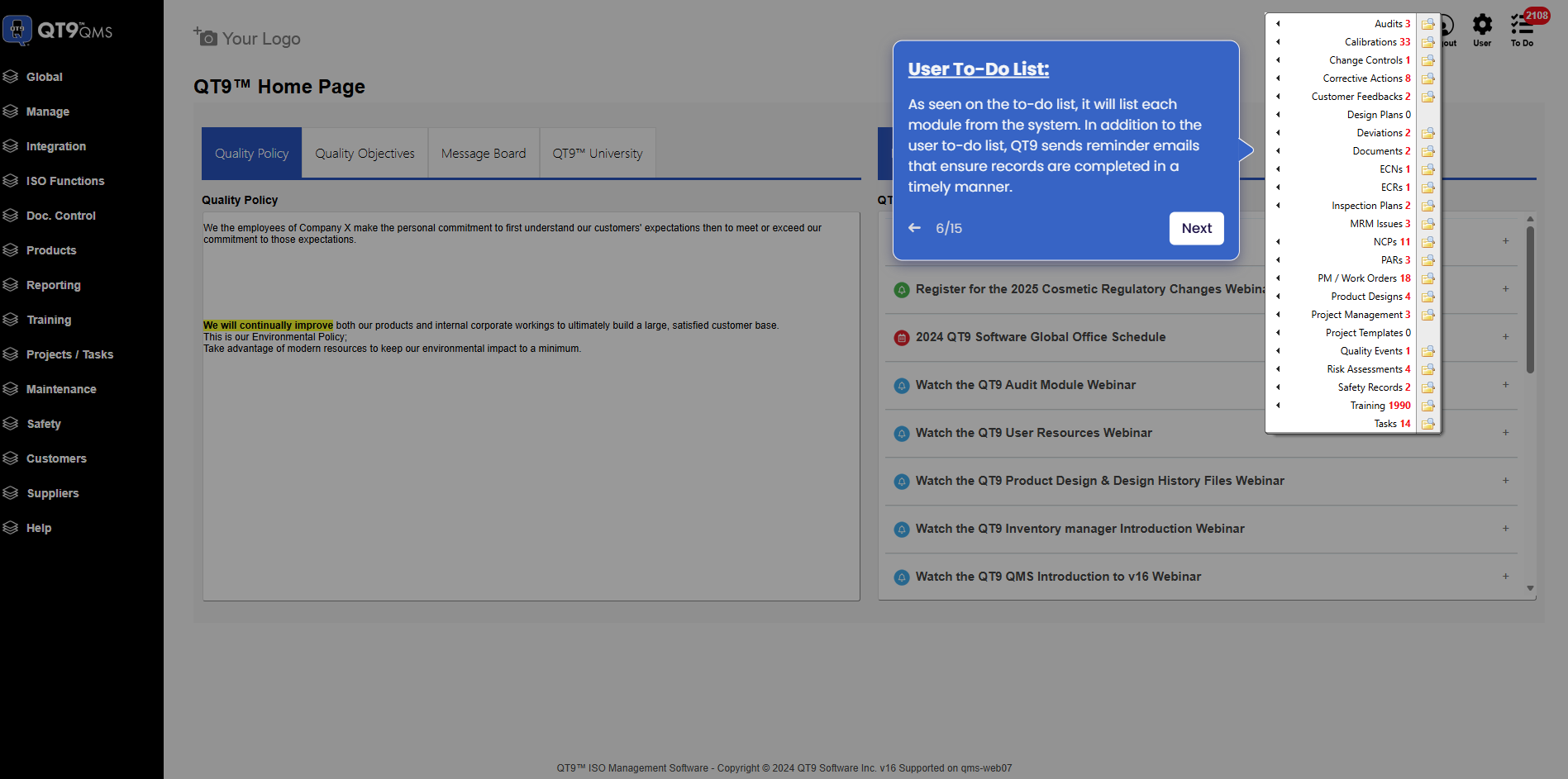
Simplify Quality, Compliance and Operations
Start a Trial
Try QT9 free — no credit card required.
Start Free→
Schedule a Demo
See QT9 live with one of our product experts.
Book a Time →
Get a Quote
Get custom pricing tailored to your team size.
Get Pricing →